Addsum web site and general info

Postings here will focus mainly on Advanced Accounting software updates, tips, and related topics. They will also include general comments relating to troubleshooting PC/Windows/network problems and may also include reference to our other software products and projects including any of our various utilities, or to the TAS Premier programming language. We considered setting up separate blogs for different topics so that users/others could subscribe to topics mostly aligned with their interests, but decided that it would be better to keep things simple since some topics cross over into others. We would nonetheless welcome your feedback/input in this regard. Our web site URL is www.addsuminc.com. Call us at 800-648-6258 or 801-277-9240. We also maintain www.advancedaccounting.us so that older Business Tools users in particular have a greater chance to find us. White list noreply@follow.it to ensure you receive notifications once you subscribe.

Wednesday, October 15, 2014

CryptoLocker ransomware: educate your e-mail users before it is too late

Ransomware is not new but in the past year has entered into an entirely new era with the advent of the CryptoLocker virus. Just in the last two days in different parts of the country two of our accounting software users have encountered this virus and it has created havoc. Neither paid any ransom but rather were able to thwart the virus by taking fast action; nonetheless it caused an interruption in business of these users along with technical support expenses, and considerable angst.

Once a system is infected, the virus spreads very quickly and easily jumps around and onto shared network drives. On one system it jumped to a server drive from a client PC that only had basic, non-administrative user rights and within less than two hours had copied its ransom notice files into every folder on that drive. So any PC (or other device) connected to your network server could spread it.

Additional morphs of CryptoLocker have also recently appeared.

Your anti-virus program may not be able to detect CryptoLocker or its morphs. Therefore, it is critical to focus on the education of your end users NOT to click on links or open e-mail attachments from unknown, untrusted or suspicious sources that may be disguised in any number of ways.

It is not clear whether the virus is able to encrypt files that are in active use; but it does not seem to discriminate in terms of what files it goes after. One user's first notification was when a simple JPEG file could not be loaded and was essentially corrupted by the virus.

General background information about the CryptoLocker trojan can be found on Wikipedia.

A Virus Bulletin Ltd. blog mentions a recent tool that may be able to provide the decryption phrase in some circumstances as a result of a joint effort between FireEye and Fox-IT (the PDF maker). See:


Some further helpful technical details:


As is discussed in greater detail in a related blog, lack of end user awareness of potential serious infections as a result of careless e-mail use is a significant part of the problem. And hackers know this.

Recovery requires an off-line backup that was made prior to the infection. So in addition to strongly reminding end users about e-mail and related dangers, revisiting your backup strategies is also in order.


Wednesday, July 16, 2014

Resolving “yourexecutable.exe” has stopped working: sometimes bigger is better

Early in the life cycle of the development of TAS Professional and Advanced Accounting 7.x, it seemed to us that it would be a good idea to compress our executable files primarily to reduce the download time of installation files, and subsequent updates involving those EXE's.   At the time, producing lean and mean EXE files also seemed virtuous and in the best interest of our users.

An unfortunate consequence of packing or compressing executable files (which is something very different than packing a data file via a rebuild or reindex and also in this context very different from other kinds of file compression), however, is that they can lead to being falsely identified by anti-virus programs as containing malware. And, when attempting to execute programs under these circumstances, the executable can be completely stopped dead in its tracks.


The process of decompressing an executable actually leads to it taking more computer memory when run, causes it to also initially run more slowly, and can create other performance bottlenecks. Counter-intuitively, the larger-sized files can therefore actually run faster (modern executable files are typically not completely read and placed into memory all at once, so even very large executable sizes usually lead to little to no loss in execution time even across a network). In our testing after removing compression, we found that they in fact did not run slower, and this solved the problem of potential false positives with respect to some third party anti-virus and related software.

So, in 2012, we abandoned the practice of compressing executable files.

If you receive a message like this and you in fact trust the source (and also inspect the properties of the underlying file,  and also conduct some on-line research), you could temporarily disable your anti-virus software to see if the “has stopped working” message is overcome (or, better, add the executable as an exclusion; your anti-virus software should - and in fact must - have the ability to add exceptions including telling it to not scan data files in order to improve performance and false positives that could lead to data loss, etc.).

In the case of our executable files, the best solution is to simply contact us for a replacement. The easiest way to accomplish this is to simply update to a more current version that contains the uncompressed executable.

Despite our wanting to shrink our executable files and provide smaller files to end users to decrease download times, in this case it turned out that bigger is better.

Friday, June 20, 2014

Pervasive/Btrieve status (error) code 20

Error code 20 is often experienced by end users. The cause depends in part on the Btrieve/Pervasive environment in which the software is running.

Btrieve 6.15 systems

In Btrieve 6.15 installations (which includes XP Pro, Windows 7, Windows 8 and corresponding server versions), a file open error such as one of the following may be encountered when first running a program.   Examples:


First ensure that the program can be run from the server/gateway PC (i.e. the PC on which the software is installed) when logged in as administrator.

If you do not receive this error code when logging in from the workstation as an administrator but you do get it when logged in from a different profile (but can “force” the program to work by manually first running Btrieve 6.15's microkernel engine w32mkde.exe), chances are that the user is a part of a standard or limited group on their local PC. The user will need to be placed into a power user/administrative group* on the local workstation to resolve.  Even if the user has full rights to the shared folder on the server, due to the legacy 32-bit nature of Btrieve 6.15 they must also have similar rights on their local PC.  One of the reasons for this is because Btrieve 6.15 places its registry entries under HKEY_LOCAL_MACHINE\Software.

*Power user or above was necessary with Win 2000 and XP Pro.  For Win 7 and above, users may have to be given local administrator privileges in addition to setting the icon properties to "run as administrator"  (see below) unless two default registry settings are changed:


In addition, absent being given administrator rights, on 32-bit PC's, the My Computer\HKEY_LOCAL_MACHINE\Software\Btrieve Technologies key should be made accessible to all users.  On 64-bit PC's, the key is instead located at HKEY_LOCAL_MACHINE\SOFTWARE\Wow6432Node\Btrieve Technologies.


Wow6432Node on a Windows 7 64-bit PC


Right click on the Btrieve Technologies branch, choose "Permissions" and set  Users/Everyone to have full control.

With these settings changed to permitted local application data paths and appropriate rights granted to the Btrieve Technologies registry key, then even with Windows 7,8 and 10, users can be placed in a power user group rather than administrative group and still invoke the engine as was possible with XP Pro.  The Addsum Btrieve 6.15 Setup program allows an end user to establish these settings in a more flexible way.

It should be kept in mind that Btrieve 6.15 was never tested on XP much less on Win 7 nor Win 8, etc.  so it is in one sense amazing that it continues to work at all.   If this however poses an unacceptable security risk to put the user in a power user group with respect to local PC rights, then the alternative is to update to an appropriate version of the newer Pervasive engines, and then local user privileges can be restricted as desired.

In establishing the appropriate Btrieve 6.15 settings in the first place on each PC where the software will run, on Windows 7 and 8 and equivalent systems it is essential that the workstation configuration programs including the BTRSETUP.EXE are “run as administrator.” On these systems it may also be necessary to change the icon that launches the software be set to “run as administrator” when launching software that uses the Btrieve 6.15 engine (see below) unless some of the default microkernel registry entries have been changed as discussed above (and which can be managed with the Addsum Btrieve 6.15 Setup utility.


If the error 20 instead occurs during software operation and not in the context of opening a file, another reason for this error message in 6.15 installations relates to inadequate user "delete" rights such that the user is unable to delete 6.15 LCK files; if the LCK files can be moved and the error 20 goes away, this indicates a user rights issue.

In rare situations, users have received error 65516 which also appears to be linked to a certain Btrieve DLL's no longer being present (for example if the 6.15 wbtrv32.dll installed in the application folder in the case of Btrieve 6.15 installations was inadvertently deleted or removed by some process or is prevented from being loaded).

Terminal services (RDP/Remote services) environments and Btrieve 6.15

Status code 20's have been widely reported when attempting to remotely access Btrieve 6.15 data via RDP.   Typically the first user can be made to work, as long as the application is run with elevated administrator privileges to resolve initial status code 20 issues, but the second user will then commonly receive a status code 20 until the first user exits the application (and after the w32mkde.exe process unloads itself from memory a short time later).  While tweaks to the Terminal Services registry and/or to the Btrieve 6.15 registry keys have been reported to allow more than single user access, a newer database engine is needed in a remote access situation involving multiple users not only to avoid giving users full administrative access but also to provide faster and more robust file handling, as well as to better interface with modern backup approaches, and since newer "Btrieve" engines have been designed with RDP in mind.  Therefore, the best approach is to upgrade the "Btrieve" component to a newer version.

Pervasive systems

When running Pervasive database engine environments, the error 20 can be returned if the Pervasive workgroup or other engine is running and the Btrieve 6.15 components exist in the application folder where the executable software (e.g. tp7runtime.exe) is being invoked (or they exist in the Windows path, which we never install to, or some other path available to the user).

The Pervasive engine and the Btrieve 6.15 engine cannot be active at the same time. They can exist or available on the same system, but both engines cannot be run concurrently from the same desktop.

To resolve, either all PC's should first be running the same Pervasive engine and the REMOVE615.EXE (provided by us) should be run to remove the Btrieve 6.15 components from the application path if the intent is to use the engine with the Advanced Accounting or other TAS-based software. If the Pervasive was installed as part of some other software, then a solution would include uninstalling the Pervasive workgroup engine if is not going to continue to be used (if related to a demo install for example) or to stop the Pervasive engine  (how that is accomplished depends on the Pervasive version; newer versions usually run as a service) before trying to run the application using Btrieve 6.15.

Incorrect or mismatched DLL's may also be the case of an error 20 in Pervasive environments.


Monday, April 21, 2014

New Wisconsin state withholding tax rates as of April 1, 2014


The state of Wisconsin implemented new state income tax withholding tax tables and rates to be implemented on/after April 1, 2014.

As is often the case, a change in a state's withholding tax rates often does not require an Advanced Accounting software update due to the ability of the end user to maintain standardized tables, particularly when a state follows an approach similar to that of the Internal Revenue Service's annualized rates and related formula structure.

Wisconsin is somewhat unique in providing two alternative annualized methods, referred to as Method A and Method B. The rates computed by these methods produce similar, but not exactly the same, withholding amounts. These calculations in turn will not exactly match, but will be close, to amounts listed in withholding tables for manual look-up.

Since at least 1988, Advanced Accounting has used Wisconsin's Method B approach since it most closely approximates the typical annualized schedule logic. And, as is also typical, there is a separate rate withholding schedule for employees that have a withholding status of “Single” versus “Married.”

The only piece of hard coded programming logic in Wisconsin’s formula involves a $22 amount per state exemption claimed that is deducted from the amounts computed by the standardized annualized tables (after which the calculated amount based on previously annualized wages is then de-annualized based on the number of days in the current pay period). We could also make that an end user managed value, but this $22 amount has been the same since at least 2004.

We also could have just as easily (and in fact initially did) use Method A to meet the April 1, 2014 changes for Wisconsin, but it would have involved using more internally hard coded logic compared to Method B, and would therefore make the system less flexible for future changes. So we have reverted those changes to again rely on a Method B withholding schedule structure.

Advanced Accounting users that have employees that are subject to Wisconsin state income tax withholding therefore only need to update the WIS (Wisconsin Single) and WIM (Wisconsin Married) tax codes in payroll (PR) module option K (Maintain Tax Tables) as outlined on page 45 of the Wisconsin Withholding Tax Guide Effective for Withholding Periods Beginning On or After April 1, 2014, Publication W-166 (1/14). 

For end user convenience, a link to a PDF that shows what these should look like from within the Advanced Accounting software is contained below.


Tuesday, April 8, 2014

XP Users: The sky is not falling

With Microsoft retiring its official support for XP today, many users are in panic mode.  Users of XP however should not despair nor does immediate upgrade action need to be necessarily taken.   But, users should educate themselves on what this means going forward.

Some 20% to 30% of the worldwide Windows PC user base still uses some flavor of XP, typically XP Pro. It has been a good run, and XP Pro has been a reliable, relatively annoying-free operating system (and remains our favorite).

Behind the scenes, Microsoft will be continuing to update XP Pro for some customers privately, particularly in the financial sector.  If a critical update becomes obvious, it would be surprising if that is not released in some fashion to the general public, although one's strategy in going forward should not bank on that happening.

Upgrading a given PC from XP Pro to Windows 7 Pro typically isn't really feasible (and even less for a Windows 8 Pro transition).   It isn't just a matter of installing some update to an existing PC (or laptop) after which all of your currently installed programs will simply function in a way that you just go forward and never look back.

While we have no reservations about using Windows 7 Pro or Windows 8 Pro and/or corresponding server versions with our software generally, there can be various kinds of other compatibility issues, and since it effectively requires a full replacement of an existing PC (both in terms of likely hardware upgrades required, plus the PC running XP is likely old and not worth spending the time and money to refurbish it) , the cost of migrating software to a new PC is very high unless the end user runs very few software applications.   For some users, you could easily budget the true cost of a new PC to include some four to six hours of time per PC (minimum) PLUS the actual cost of the hardware, to make a migration.   For some PC /server migrations, it could take quite literally days to effect a full migration and that PC/server still would not contain everything that that the prior one did.  And even then, some third party application may not work and/or important information overlooked and lost.

Depending on end user and other software requirements, compliance with HIPAA or other industry specific standards, whether the software used most is on-premises or cloud-based, and depending on the compatibility of critical software used and equipment age, it may be best to simply plan on replacing PC's in connection with current retirement schedules, but not otherwise act right now simply because Microsoft has stopped providing security updates and not succumb to some of the scare tactics that are being circulated.

Exploits relating to the use of the Internet Explorer (IE) web browser have been known for a very long time and are not new.  While there are some government or financial web sites where you still might have to use IE to gain all functionality, it would be best to now restrict the use of IE (and even then, only if you have to use it) on updated Win 7/Win 8 PC's to the extent available (in a mixed network environment for example) and completely avoid using IE on your XP Pro PC's.  (Do not however attempt in any event to ever remove or uninstall IE from a PC running Windows!).

Automatic Windows updates have also often caused as many problems as they have purported to cure.  We are not suggesting never updating, but we have seen numerous problems with automatic updates.   This is something then that XP Pro users will no longer have to worry about!   We frankly do NOT recommend setting your computer system to automatically update for operating system related changes and updates; instead apply the updates when you can monitor their progress, and watch them being installed.   This will avoid many bad Mondays.

It will remain important to be vigilant about all PC use and to continue to update your browser and anti-virus software.   Opera, Mozilla Firefox and Google Chrome (at least until 2015) have all indicated that they will continue to support XP.   So, if you have not already done so, we would strongly suggest installing both the latest versions of Chrome and Firefox (because sometimes Chrome doesn't get the job done) on your PC's or laptops running XP Pro and keep them updated.  The same of course is true with anti-virus and malware software since most anti-virus software publishers (including Avast which we like) have indicated that they will continue to support XP Pro (in the case of Avast, for at least the next three years).

If you already have installations of Firefox or Chrome on your battle-proven XP Pro machine, make sure they are the latest versions (some older versions of Firefox for example do not support the latest XP Pro through SP3). 

Ensure also that you have anti-virus software in place that is being updated (but which is set with appropriate exclusions; it should not be scanning database files for example in real-time).   If you are using Microsoft Security Essentials, Microsoft says that they will continue to provide updates for a “limited time” after XP's official retirement to allow for a transition, so plan on disabling that and installing some other anti-virus program on impacted PC's in the very near future.

Continue to educate end users as to best practices and safe web surfing.  Continue to consider issues that relate to physical access as well as your firewall, and restricting what can and cannot be done on a given PC.   Continue to monitor the effectiveness of your data back-up strategies and ensure that they are actually made, and that you know how to restore files should that become necessary.

An overlooked security tip:  when your PC or laptop isn't being used for an extended period of time and all other things being equal, turn it off.  While there are certainly exceptions, most PC's do NOT need to be left on overnight.  Nor should they be unless needed for remote access or on-line back-up (they should even in that event be scheduled to shut off at some point during the night, other than perhaps the "server" which still needs to be periodically powered down).  And if you are going to be gone from the office for several hours during the day, why not turn your desktop PC off as well?

When upgrading your PC's, if you use Microsoft Terminal Services, consider replacing your in-house PC's not with yet more PC's, but rather with Winterms.  We cannot understand why that approach has never gained traction; it isn't appropriate necessarily for every user on your network, but would be a very effective approach for many in-house users and substantially reduce not only current and future costs but also increase security.   So the only upgrade path for your XP Pro device is not limited to moving to Win 7 or Win 8. 

The sky is not falling and many users will continue to make good use of their PC's running XP Pro for at least the next several years.    Early last year we assisted a user running a legacy version of our software on a Windows 98 PC.  Somehow they had survived running in that fashion since 1997.  The technology cycle continues to shorten and so we are not suggesting that users should continue using XP Pro longer than perhaps another year or two; but we will also not be surprised to encounter users still successfully and happily still running it many years from now.

Postscript:  A Microsoft security blog relating to the above that you should read if you have XP PC's and plan to stay on XP for a while is here.   Even though we don't agree with everything that is stated there, this may help you to arrive at own conclusions.  It is important to note that sometimes getting the latest and greatest updates, especially when they are relatively new, is not hardly any guarantee of better protection.  An example is the so-called Heartbleed bug.  It was only the newer released OpenSSL DLL's that had the issue.  DLL's released in 2011 for example did not have the problem. Again, we are not suggesting never updating nor keeping current up to a point, but that was in essence a two-year old bug that only just recently came to light and it was the newer updates that caused the problem, and it simply speaks to the fact that the overall security of your system involves far greater issues often than just whether or not you can obtain automatic updates.  Sometimes being on the bleeding edge isn't so great and exposes you to greater risk.  Yet, this is rarely discussed or written about.

A pertinent April 21, 2014 avast! blog:  So you’re sticking to Windows XP? Here’s how to protect yourself: It’s the end of Microsoft support, not the end of the world.


Saturday, March 8, 2014

Looking up Pervasive (including "Btrieve") status codes

How do you know what  a given Btrieve/Pervasive file open error means?


Advanced Accounting and TAS Premier/Professional programming language-based applications most typically use the Btrieve/Pervasive database manager (sometimes referred to as the "record manager" or "database engine") implemented in various configurations.   Traditionally the "Btrieve" product has been an engine interface to an application rather than a database management system.   Newer versions do now have the availability of a user interface layer making it closer to a DBMS rather than solely a record manager as in days past.

The trademark "Btrieve" is no doubt derived from the term B-tree coined by Rudolph Bayer and E.M. McCreight in 1972 relating to a tree database structure used for indexing (finding) binary data.  The origination of the term B-tree in turn perhaps might have been formed as a different kind of  "binary tree" although they are not synonymous.  (Perhaps the "B" related to primary author "Bayer" and tree for the related data "tree" structure; the authors did not indicate why they chose the term B-tree in their 1972 article.)   The methodology employed by the Btrieve microkernel engine for database indices, and which also became the industry standard, is B-tree searching.  

At one time Btrieve software was owned by Novell, but that has not been the case now for a very long time. Many other software applications also use Btrieve or more commonly in today's world, Pervasive.SQL.  (Peachtree accounting software for example uses it but its installations limit its functionality and it does not provide the user layer interface nor all of the utilities and management tools.)   The  term "Btrieve" is still used informally when discussing status codes and database engine issues.

Btrieve/Pervasive database engines remain a robust, cost-effective option for data intensive software applications.   They have the ability to scale from a single user to hundreds of users and, in an on-premises environment, rival Microsoft SQL in terms of performance as well but usually at far less cost.

When the Btrieve/Pervasive database manager encounters a problem, typically a "status code" number is returned (historically returning a one to three digit number, and later expanded to four; SQL errors can be up to five numeric characters).   There are therefore many  potential responses.

When a status code is returned that involves a  specific data file error/status code, it is then very important to investigate and resolve; the application should not continue to be used until that occurs.   In the case of a status code 2, for example, when a program tries to open or save to a given data file, that status code means that an I/O error has occurred and that  the data file must be repaired (often simply reindexed, but not always) before any further "writes" are attempted.  In other words, it must be given immediate attention.   The "2" error will persist and not go away with continued use and usually never indicates a temporary problem of any kind.

Users are plagued with warnings and error messages responses from the operating system, anti-virus programs, other programs, etc. and quickly become anesthetized to this constant barrage of messages.  This has become much worse with newer versions of Windows and the infamous UAC (user account control) which excessively tends to burden the user with its constant questions and messages.   This then tends to lead a user down a road of simply ignoring error messages that do not stop the application dead in its tracks.

But in the case of a status code such as a 2 in the case of Btrieve/Pervasive applications, it should not be treated like a "check engine" light but more like a flat tire:  you need to pull over and stop! 

Understandably, end users typically are not aware of this, they may continue to try to continue to use the program and create even more problems requiring manual repair efforts.

(And as an aside with respect to status code 2, our May 11, 1998 tech support memo which in turn reprinted  an article posted in a CompuServe Btrieve form circa 1995 still applies when troubleshooting that error code!)

In the days of Btrieve 5.x (16-bit engine) and prior, there was no built-in way to determine what a status code might mean.  That continued to be the case with the 32-bit Btrieve 6.15.   Starting with newer versions of Btrieve after 6.x (called now Pervasive), documentation started to be included that contained this information (in addition to on-line sources including the Pervasive web site), but it still requires some digging to find.

CD's shipped by Pervasive for example include reference libraries and PDF's that provide various levels of useful information including status code details.   But, it is usually simplest to lookup the status code from Pervasive-installed programs.

So where do you find them?

It depends on the version in use.   In the latest versions (10 and 11),  they are available directly from the Pervasive Control Center under Help and then PSQL Documentation Libary, i.e.:

Pervasive --> PSQL 11 --> Control Center & Documentation --> Help


Once the PCC is loaded, click on Help then PSQL Documentation Library:


You can then search the status codes:


Absent a Windows program/start menu in Win 2012 Server and Win 8, search for Control Center in Win 2012 Server and Win 8).    If you just search for Pervasive, you will not find it.

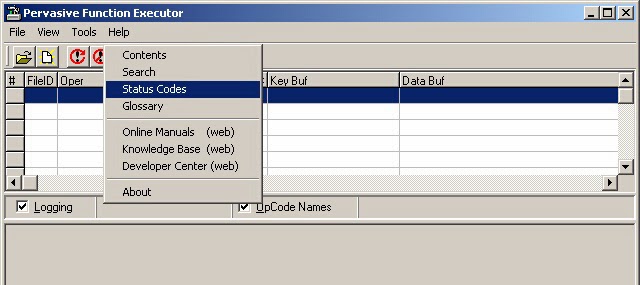
In earlier versions, such as version 9, they are available from the Function Executor utility provided by Pervasive (that end users typically will otherwise have no need for, and will not even be aware that it exists) which is nested deeply from the Windows programs menu:

Pervasive --> Pervasive.SQL --> Other utilities --> Function Executor -->Help


Click on Status Codes to proceed to investigate the error/status code.


Thursday, March 6, 2014

Power outage leads to Pervasive 3106 and 3012 status code (error) messages

A multi-user Advanced Accounting customer today reported that they could no longer "get into the software" following a power outage.

The user has a Pervasive client-server version on a system that we have long supported.

From a client PC, the user reported receiving a Pervasive 3106 status code. When we logged into a server (but not the “main” server” where the Pervasive engine is located) and running terminal services via remote desktop, we received a status code 3012 when trying to launch the accounting software, when it tried to open the first “Btrieve” data file which in this case was at the logon screen.  (The software will initially launch without a Btrieve/Pervasive engine present since other files are first opened that do not require it.)

From the Pervasive documentation, causes of the 3106 and 3012 status codes are:

3106: The Pervasive Network Services Layer encountered a connection failure.

The Pervasive Network Services Layer was able to establish a transport connection at the client side, but the connection attempt at the target side failed.


One of the listed possible causes of a 3106 status code is:

The MicroKernel is not running on the server.

3012: Local engine is not accessible to the MicroKernel router.

Access to the local engine is not possible because it is not loaded or could not be launched. You can receive this status code if you try to access a local file on a client and you do not have a Workgroup engine installed or if you try to access a local file on a server and the Server engine is not running.

When the server re-booted following the power outage, the Pervasive service had failed to automatically start and was indeed not running.   Normally, Pervasive services are set to automatically load on start up.  The client Pervasive services were running (either the client PC's didn't lose power or they started up normally on re-boot) but the main server engine was not, and so the initial cause of the 3106 and 3012 was not as obvious as in a situation where no services or engine was available at all.

Restarting the Pervasive service on the server resolved the issue.


Postscipt:  In October of 2017, a user reported a situation where a client PC in a Pervasive workstation engine configuration suddenly receiving a file error 3106 when trying to load Advanced Accounting across their network. Their troubleshooting revealed that a recent McAfee anti-virus update had blocked previously open ports causing the Pervasive engine to no longer be able to communicate with the gateway PC/server as before.  Pervasive uses by default port 3351 for its transactional engine and port 1583 for SQL/ODBC access (these ports can be reconfigured but rarely are).  In the case of Advanced Accounting, or any Btrieve-based software, if port 3351 is blocked then the Btrieve interface communications will be blocked.   

Telnet can be used to determine if the server/gateway PC or local PC is listening on port 3351 as follows:

telnet computername 3351

where  computername is the name of the server/gateway or the local PC.   On each PC of interest:

netstat -an

will show what ports are listening.    Because the output will scroll by quickly, scroll the file by either adding a more option:

netstat -an | more

or redirect the results to text and and view in notepad, e.g.:

netstat -an > results.txt

notepad results.txt

In the results of that command you should open ports such as:

  TCP    0.0.0.0:80             0.0.0.0:0              LISTENING
  TCP    0.0.0.0:1583           0.0.0.0:0              LISTENING
  TCP    0.0.0.0:3351           0.0.0.0:0              LISTENING