Addsum web site and general info

Postings here will focus mainly on Advanced Accounting software updates, tips, and related topics. They will also include general comments relating to troubleshooting PC/Windows/network problems and may also include reference to our other software products and projects including any of our various utilities, or to the TAS Premier programming language. We considered setting up separate blogs for different topics so that users/others could subscribe to topics mostly aligned with their interests, but decided that it would be better to keep things simple since some topics cross over into others. We would nonetheless welcome your feedback/input in this regard. Our web site URL is www.addsuminc.com. Call us at 800-648-6258 or 801-277-9240. We also maintain www.advancedaccounting.us so that older Business Tools users in particular have a greater chance to find us. White list noreply@follow.it to ensure you receive notifications once you subscribe.

Tuesday, October 17, 2017

Inserting special characters into data input fields

Recently an accounting software user asked us how to insert special characters or symbols such as the copyright and trademark related symbols into data entry fields such as inventory descriptions.

In Windows-based systems (including Advanced Accounting), there are several ways do to this.

(1) Direct data input method:

Special characters or symbols can be entered directly into string (aka alphanumeric) fields provided that you know what the symbol or character is (more on that below).  Examples:

™  (trademark superscript) Alt-0153

®  (trademark registration) Alt-0174

©  (copyright symbol)  Alt-0169


(Proper usage of these symbols is beyond the context of this post but generally: use trademarks as verbs rather than nouns whenever possible; do not use the trademark registration symbol unless the mark is actually officially registered with the USPTO; and the copyright symbol should always be followed the year and the copyright owner and not used by itself nor without the year.) 

Detailed steps to insert a special character or symbols into a data entry field:
  • Press your keyboard's Num Lock key and/or make sure the Num Lock key is on;
  • Press and hold one of the ALT keys (with your left hand;
  • With your right hand and using ONLY the numeric key pad portion of your keyboard (and not the keys across the top), enter the four digit code (must be preceded by a zero);
  • Let go of the ALT key.


Example of the ™ symbol entered into an Advanced Accounting 7i description field

You could also enter a special symbol into the message line or a sales order or purchase order or into any word-wrapped note (memo field) in the system.

But how do you determine what the code is for the desired symbol or character?

There are on-line lists and other references for these codes, but the simplest way perhaps is to lookup the code using the Character Map option provided in all Windows operating systems.


Windows 10 Character Map after clicking on  © symbol

So in the example above, clicking on the copyright symbol provides the ALT code for that symbol.

 (2) Copy/paste method:

For more or less any source you and also copy/paste in characters.

From the Windows Character Map, an example follows:


Windows 10 Character Map clicking on the ® symbol and clicking on Select

After clicking on the desired character or symbol then click on Select and then Copy and the character is available to be pasted (CTRL-V) into the desired data input field.


Regardless of the font chosen, the font will be 'converted' to the font that has been specified for that entry object on the underlying Windows data entry form. So the font will not necessarily be rendered in the same font as the source from which it was copied.  In Advanced Accounting, the default font is Arial and that is the font therefore that the special character or object would be rendered in after pasting it into the desired field.

Word processing programs typically have similar options from which special character or symbols can be copied and then pasted.  

Microsoft Office:
https://support.office.com/en-us/article/Insert-a-symbol-or-special-character-81e64967-74c0-4fd9-814a-3aa867d4cfce


OpenOffice:

https://wiki.openoffice.org/wiki/Documentation/OOo3_User_Guides/Writer_Guide/Special_characters


Additional information for TAS Premier 7i  programmers:

End users can utilize the direct entry method with a number of different objects including:

TTASENTER, TTASComboEnter, TASMemo, TMemo, TListBox and TTASDataGrid cells that are string-based.

Further, the direct data input (ALT) method will even work with label and button captions and data grid headers in the Screen editor (as well as with label captions and objects linked to data or that have TStrings properties in the Report designer) should you need to use a special character or symbol as a caption or header.

Saturday, September 30, 2017

Form emulation with the TAS Premier Report Designer

Included with the TAS Premier development system is an integrated report designer that is based on a subset of features provided by the Digital Metaphors ReportBuilder software product.

The designer is intended to be used with program code that loads and provides the data pipeline to the report.   While not intended to be a report writer, the report setup nonetheless to a significant degree also "drives" the report.

While the designer can be launched and used as an end user tool to edit RTM layouts if provided for programs running within TAS runtime environment (in order to make basic changes for example), changes must be made with care to avoid making edits that change group fields or named objects or that add subreports or use fields related to files that are not opened in the program that the RTM was originally intended for.   Related fields may also not necessarily be available if added to the report depending on whether the underlying program code is making those related finds.   Edits could easily be made that would then cause a given report not to function at all.

While the report designer is most often used to provide traditional reports, it can also be used to include images and to accomplish form emulation including "fill in the blank" type forms.  And some objects can be used to emulate forms directly rather than via scanned images.

A brief discussion of the approach can be found here, which is further discussed below:

https://www.digital-metaphors.com/products/report_design/form_emulation.html 

There are different considerations in the report design depending on whether the form you wish to emulate is a single page or whether there are multiple pages (like various federal payroll tax forms).  It is also important to know whether or not there will be multiple records that need to be found in detail section within a single page.

Single page forms:  the simplest approach is to put everything in a detail band that is sized to the height of the page, eliminating all other report sections.    In this design, each record (or values accumulated into memory via temporary variables) is associated with a single form page.

If a variable number of records are required to complete the form, a different approach is required that involves use of a Page Style report band.  A Page Style band is like a Title,  Summary, Header, Detail or Footer band but was something not available in prior releases of TAS Professional and TAS Premier. 

Starting with release 12 of TAS Premier 7i that will be made available later this year, a Page Style band will be supported in the report designer as shown below.
Page Style band in rel. 12 of TAS Premier 7i
Page Style bands can also be used to add watermarks to invoices and other documents.  The Page Style band generates behind all of the other bands of a report.


Multi-page: similar considerations apply except that with multi-page forms, the page height bands, whether Detail or Page Style, each page needs to be separated into subreports.  The main layout page might have nothing more than a detail band with two or more subreports each of which might print a full height page.  Driving the report, in the simplest approach, just one record (or a single set of memory variables), might trigger the printing of both pages.  

For more details, see the detailed example at the end.

The possibilities for form emulation are almost endless.


Miscellaneous tips and comments:

Images:   A compromise between image size and printer overhead might be taken into consideration, however, we have used fairly large scanned forms in the 4 to 8 meg range and have not seen much of a performance difference.  The sharper the scan, the better the printer output quality.   We have found that bitmap (BMP) image files work very well for most forms.   Note that when using an image to take up basically the entire height/width of a page, it is best to first apply these properties to the image object: 

Uncheck Center
Check MaintainAspectRatio
Check Stretch


Next place the TppImage object in the upper left hand corner of the Detail or Page Style band you will be using.  Then with your mouse, pull the image down to the bottom of the band and then to the right.   

To optimally size the image, you may use digital editing software tools before bringing it into an RTM. For form emulation, you will want to use a TppImage (see Image object below) rather than a TppDBImage (not shown below).
Manually creating your own forms using shape objects:   Using the Shape and Line tools, you can create boxes and lines to mimic many types of forms.  You can even create "graybar" regions that alternate in the body.  (See example below.)

Forcing regions to fall behind Shape and Line objects requires a few steps. It is important to first uncheck the On Print Control Flag.  (Normally regions need "on print" control so it depends on what you are trying to accomplish.)   For a blank area on the form that will not be populated with any field values, turn it off or else it will not appear on the report output.  Also:

Blank out the default Caption name
Under Brush then Color choose a light gray color or create your own grayscale or other color
Under Pen, in the Style drop down, choose the "blank" (empty) style which is the sixth item down.

Region properties
Gray region example
After placing the region on top of a Shape object:

Right click on the region and choose Send to Back
Next choose (with a mouse left click) the Shape object and then right click on the same object and choose Send to Front, and finally right click again and choose Send to Back

The region will now be "behind" the Shape object as shown below:
Manually created form using Shape, Line, Region and Label objects.  The six regions above are all behind the shape and line objects.


Report previews:   when viewing the report in a preview, included image quality isn't the same as when the document is printed to a printer (or to a PDF) due to the way that images are rendered to the screen.  Don't worry if the report form doesn't look as sharp in the preview as expected.


Multi-page example

Two subreports on the main report designer page/tab with a detail band only. Add additional subreports if your form is more than two pages long.


The detail band of the main report page should be set to a dynamic print height.

Since the main report page is considered to be tag 1 by default, the first subreport is tag 2.  The tags are important and are referred to in program code.

The second report is tag 3 and also, note that subreport 2 must shift relative to the first subreport (otherwise it would print on top of the first subreport).  So, the ShiftRelative Property for the second subreport is a critical property.


Clicking on the first subreport tab.  The subreport for a form only would have only a detail band (or instead only a Page Style band).


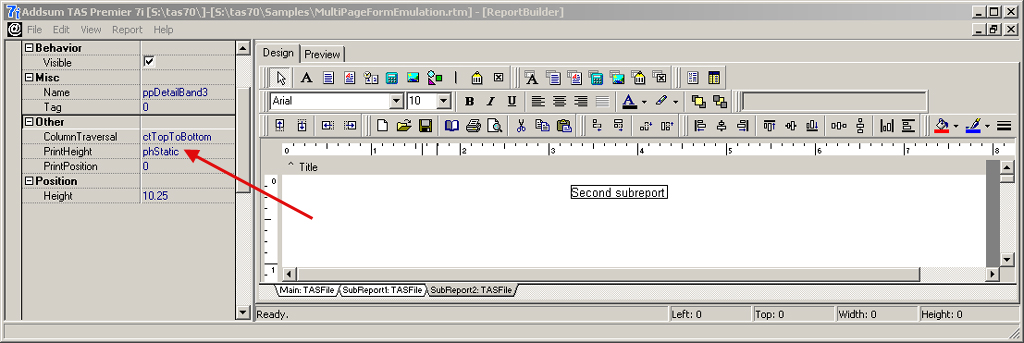
Assuming a full page form, set the print height to be static and the height to take up the entire page. The height indicated is assuming a 0.5" bottom margin and 0.25" top margin so the subreport height is set to 10.25".
Clicking on the second subreport tab.  It too would only have a detail band.

As with the first subreport, set the print height to be static and the overall height to take up the full size of the page.


The TAS program code (placed in the Program editor and compiled) to generate the example above might look something like this (note how little code is required to setup and output the report and generate a print preview):

Note this is a simplistic example with no selection screen - normally there would be a #winform compiler directive followed by the screen name at the top of the program.

#forcerwn
#winreport MultiPageFormEmulation

//define fields and open files which is this example 
//would have to occur in the implied start label

start:

setup_report_buff rb_num 1 reportname '
MultiPageFormEmulation'
setup_report_buff rb_num 2 link_to 1
setup_report_buff rb_num 3 link_to 1


output_report_data rb_num 1

//now setup typically a SCAN data structure with desired logic
//to provide whatever data is desired to appear on the forms


//scan structure
   //rb_num 2 corresponds to the subreport1 tag
   output_report_data rb_num 2
   //rb_num 3 corresponds to the subreport2 tag
   output_report_data rb_num 3
//ends

//output the report
print_report use_printer

quit
ret


Monday, August 7, 2017

July 2017 state withholding tax changes

A few states have implemented mid-year state income tax withholding rate changes.  These include:


Illinois:

As of July 1, the withholding rate has increased from a flat 3.75% to 4.95%.   The supplemental wage rate has similarly increased.  The basic allowance has increased slightly from $2150 to $2175 (the additional allowance of $1,000 has not changed).  

Illinois users of Advanced Accounting's payroll module will need a program update from us in order to implement this change.  Contact us as 800-648-6258 or send an e-mail to support@addsuminc.com.

More information:
http://tax.illinois.gov/TaxForms/Withholding/IL-700-T-2017.pdf


Kansas:

Tax table percentage rates as well as base tax amounts have decreased effective July 1 for both "single" and "married" employees.  The earnings ranges for employees with a "married" status also was expanded.

The standard deduction remains at $2,250 (as it has since at least the year 2000).

The supplemental wage rate (assuming the federal supplemental wage rate is also used) remains at 5%.

Kansas users only need to update their KSS and KSM tax codes in Advanced Accounting's PR-K (maintain tax tables) option to correspond to the annualized rates outlined here:

https://www.ksrevenue.org/pdf/whrates2017.pdf

If you need assistance, please contact us at 800-648-6258 or e-mail us at support@addsuminc.com.   We have also updated Advanced Accounting's tax tables for Kansas.


More information:
https://www.ksrevenue.org/pdf/kw1002017.pdf


Other notes:


New York City made some mid-year tax table changes but the New York state tax table changes for the state that went into effect January 1, 2017 have not changed. Standard deduction amount changes went into effect January 1, 2017 and those were incorporated previously into our January 2017 Advanced Accounting payroll update. The supplemental wage rate for the state of New York of 9.62% remains in effect as it has since at least 2014 when we added supplemental wage rate support for a number of states into the latest version of Advanced Accounting.  More information with respect to New York is at:

https://www.tax.ny.gov/bus/wt/rate.htm

A number of states have made changes to either the handling of state withholding taxes (for example, in Nebraska, state withholding tax deposits as of July 1, 2017 have to be made electronically) or have made other non-withholding state tax changes.   We recommend making a quick check of your state's tax agency web sites to ensure compliance.


Monday, July 31, 2017

ABC concludes successful 28 year run

Our congratulations go out to our long-time customer American Battery Charging, Inc. of Smithfield, Rhode Island for concluding a successful run, ending with the sale of their business to a third party.  Their last day of operations in Rhode Island was in early July of this month.


American Battery was an Advanced Accounting 5.1 user from 1996 to 2017 and we enjoyed working with them in support of the accounting package and in making various custom modifications most of which were made in June of 1999 and which remained in continuous use until this month.  A heavy bills of material user, they made significant use of the ability of Advanced Accounting to nest BOM's up to nine levels deep.  In order to do this, the software makes a recursive subroutine call that is unique to the BOM module.

They had intended to upgrade to the latest version but initially in its implementation with their data we jointly discovered an issue with builds in the spring of 2013 that were more than three levels deep which was later resolved later that same year and which resulted also in other significant enhancements to the build process in the newer version.   In view of their future plans, they elected to continue to use the 5.1 version.

The data in their 5.1 system was ultimately made available for querying via SQL, allowing pertinent data to be carried over into the financial system used by the acquiring company.

Our best wishes to go out to the former employees and owners, some of which were ready for retirement, and some of which have stayed with the acquiring company.   


Friday, June 23, 2017

TAS and Advanced Accounting in the beginning

Many of our current customers began using the TAS development system originally developed by Business Tools, Inc. and the early versions of the accounting software called TAS Accounting Software (and TAS-Books, later Books, and Advanced Accounting) after seeing advertisements that ran in the 1985 to 1987 time period ( which continued into the early 1990's) in periodicals such as PC Magazine and InfoWorld.

The introduction of a low cost (under $100) fourth generation language with an integrated screen editor, program and report generator, data dictionary and runtime compiler was ground breaking.  It also pushed back against the "copy protection" schemes of that era. 

And including the source code with the purchase of the accounting software (a practice which Business Tools continued into the late 80's and also the early 90's with their second and third major releases) was also somewhat revolutionary. 

Advanced Accounting today remains a modifiable accounting software system.

We appreciate the loyalty, and celebrate the longevity of, the continuing TAS/Advanced Accounting end user customer base.


Byte:  The Small Systems Journal (magazine).  June 1985.


PC Magazine October 29, 1985
TAS Hard-Nosed Database plus optional TAS Accounting Software bundled with source code
TAS 1.0 (Level 1/2/3 releases)


InfoWorld September 22, 1986
TAS-Plus (aka TAS 2.0)


PC Magazine May 13, 1986
TAS-Plus, TAS-Books, Advanced Accounting
One of the earliest uses of the Advanced Accounting trademark

PC Magazine February 10, 1987
TAS-Books vs. Dac-Easy
TAS-Books was developed using TAS-Plus (TAS "2.0")

PC Magazine January 28, 1992
Advanced Accounting 3.0 (developed with TAS Professional 3.0)

PC Magazine April 14, 1992
Advanced Accounting 3.0 (developed with TAS Professional 3.0)


Monday, May 22, 2017

From Books 2.04 to Advanced Accounting 7i

A user that we have provided occasional support to since February of 1997 and who had been a Business Tools accounting software for well over a decade prior to that, recently decided to make the jump to a more modern version of the software.  

It remains completely possible to move data from some of the oldest legacy Books and Advanced Accounting versions to the latest release.  But there are challenges.   And in this case, even though the software had not been customized (one of the reasons why sometimes users don't move forward into new versions and which can pose an additional considerable challenge), more obstacles than might have been expected were encountered.

Challenges and obstacles:

Just to move a Books 2.04 system forward is a somewhat tricky task even when everything works exactly the way it should.  And in this case, it initially did not.

Program age and limited feature set:   Books 2.04 (Copyright 1988 Business Tools Inc.) was based on the TAS Professional 3.0 application development system (Copyright 1986-1988 Business Tools Inc.).   It had a reduced feature set compared to Advanced Accounting 3.0 which was also based on TAS 3.0.   The latest tas.exe executable file in the 3.0 series was dated October 30, 1991 and this was the executable in place on this Books 2.04 end user system.

 Books 2.04 was the next upgrade in the evolutionary line after the prior TAS-Books system developed using TAS-Plus 2.0 (both Copyright 1986 Business Tools, Inc.), and it was still using Btrieve 4.11b (Copyright 1982, 1988 Novell) dated February 29, 1988, which loaded as a TSR usually in a batch file prior to calling the tas.exe executable.  Orders in fact had been entered and processed earlier in this month.


Books 2.04
Unlike its peer product Advanced Accounting 3.0,  the Books 2.0 series lacked the concept of a sales order number (it only had invoice numbers), had no invoice history files, no purchase order history file, no multiple location handling, etc.   The 3.0 development series that both were based on also handled multiple companies very differently internally than would be the case starting with version 4.0.

Dictionary files were unexpectedly corrupt:  In moving  a legacy system forward, a Books 2.04 or Advanced Accounting 3.0 system must first be converted (in terms of its data; the program themselves are not converted but rather updated and replaced via software upgrade installations) to Advanced Accounting 5.1 (versions 4.0 and 5.0 can be skipped in terms of data conversion).   An even older system such as TAS-Books 1.02 would have to first be converted to a TAS 3.0 based system.   With over 20 years of use, some data files might be expected to become corrupt.  None however appeared to be in this case.  In running the standard conversion process to Advanced Accounting 5.1 after making the necessary preparations, we ran into an unusual problem:  the conversion process was clearly going through each file and converting each record, yet every single record saved into the 5.1 version was blank.   Yet there were no error messages encountered during the conversion process. This is not behavior that we had previously experienced. 

After a lot of troubleshooting and trial and error, we finally realized that the TASDICT.M file (version 3.0 based systems have *.M* data files; later versions starting with version 4.0 have *.B* file extensions) was corrupt after trying to reindex it in several different ways including using the Pervasive rebuild utility:   This was true of both dictionary files required in this version to support the two different sets of company data that were converted, and even though the last date stamp of these files was January 30, 1998.  The dictionary (and location) files do not change on a regular basis and there was no reason to expect that they were corrupt.   And in fact, it is rare for dictionary files to ever become corrupt in any version.

Yet the results of a Pervasive rebuild indicated that both the dictionary files (one for each company) in fact were bad.

The rebuild operation start time is 05/20/17 12:22:58.
rbldcli -c -sK -pP -f6  C:\books\tasdict.m

REBUILD-20: The utility is processing C:\books\tasdict.m.
REBUILD-68: Status code 2 was returned while copying records from the following file:
C:\books\tasdict.m.
REBUILD rejected a total of    645 records.
REBUILD copied a total of     90 records.
REBUILD rebuilt a total of      0 indexes.
The rebuild operation end time is 05/20/17 12:22:58.

Another symptom of corruption was the fact that the "maintain database" program could not find its matching field records when attempting to use it for any desired file.   The dictionary files that define fields and tables otherwise remain static and aren't even opened and used in any way by older versions including through version 5.1 other than the location file.  So the problem of the corrupt dictionary files wouldn't have caused any end user problems unless the user needed to use the maintain database option (which apparently they did not) or in the conversion process that was now desired.

Since the dictionary files could not be repaired or at least not easily, we then had to hunt for a replacement.   We no longer have an installation package that we could find for a standard Books 2.04 system.   We would not expect the user to have a backup from before 1998 of the afflicted file.  But,  we found one in connection with an old project.  And we determined that with the replaced file, the conversion did work; except, the TASDICT.M replacement file had layouts that had been customized which created problems until some of those changed layouts were changed back to match the standard Books 2.04 system being converted.  

Post 5.1 conversion problems:  Because of limitations of Books 2.04, a special utility that we completed in May of 1999 (named BKBK20) has to be run to move posted sales order invoices out of the pending file into historical files, among other things.  That program has to be run in each converted company. That worked as expected.

However, a serious year 2000 (Y2K ) issue remained, and one that was anticipated.   Books 2.0 and Advanced Accounting 3.0 were not Y2K compliant because of the century problem engendered by the use of short dates, i.e.  a system using short dates in the MM/DD/YY or other similar short year format has to make an assumption as to what the current sliding century is based on.  And legacy development systems such as TAS 3.0, simply used a 1900 to 1999 century period meaning that a date entered as 01/01/00 would be interpreted as a 1900 date.  This though was not a problem of the Btrieve record manager engine (which has always saved dates as long dates, never as short dates and this is still true with the more modern Pervasive systems) but in interpretation of a short date century by the implementing software (in this case, tas.exe).   While attempts were made by Business Tools to effect Y2K changes in later versions, only version 5.1 became the first Y2K compliant version in terms of fully and correctly interpreting dates entered in the 21st century (well, for at least the first 20 years of  the new centruy; the sliding century for versions newer than 5.1 is much greater).

Users of versions prior to 5.1 who did not upgrade their software by January 1, 2000 typically were customized users who in anticipation of a Y2K problem had TAS 3.0 developers change every "short date" to a "long date" in their system.  This is not the approach taken to solve the issue in the newer Advanced Accounting series that continues to use short dates for date entry (which saves users entry item and leads to fewer entry errors) but it was the solution of choice in customized TAS 3.0 systems (it was not however the only choice, but typically  the only option that was commonly implemented).  And there are many dates that had to be changed including changing all of the internal temporary date fields and all of the screens with dates on them had to be addressed including sometimes placing that date in a slightly different position to accommodate the extra two digits.  Lots of tedious work was involved.  So it was not a trivial undertaking also because every single program using a short date would then also have to be recompiled along with changes every single screen or report "mounted" by that program, and lookup lists also requiring realignment for the extra two digits and so forth, and then tested.

This Books 2.04 user had decided to roll the dice and live with whatever consequences came their way in terms of the Y2K issue.   This did not mean that their system stopped functioning as of January 1, 2000, a system that they continued to then use for an additional 16+ years past that data.  But it did mean that the system did not "understand" that a "99" date and prior was older than a "00" date which would have led to problems in posting things into a prior year, customer aging lists, all reports that included any prior year dates in a date range, etc.  In the year 2000 itself, there would be been lots of problems.  As time went on though and years passed, the fact that the system was not Y2K compliant meant very little and the software would have had all of the appearance of working exactly as it did prior to the turn of the century.  

But given all of the data that was dated on/after January 1, 2000 intending to be in a new century and not the old one, and given that this information was now going to be contained in a system that was Y2K compliant, the date problem had to be fixed.  Using in part a utility we had written to address this issue, the century problem in the underlying short date data was fixed so that dates would sort and behave as expected.   

There were also some GL and other technical setup issues that had to be resolved.  And finally, we had a Books 2.04 system converted to Adv 5.1


Advanced Accounting 5.1

Final phase to Adv 7i:  From here, standard tools we developed going back to 2004 and enhanced since then were used to move the 5.1 converted data for two companies to the latest version.  This involves a series of steps, but all went very quickly and very smoothly.  

And so finally the system was ready for use, containing all of the customer, inventory and sales history data from the Books 2.04 system.


Advanced Accounting 7i


Wednesday, May 17, 2017

Windows cannot access specified device

An unusual occurrence leading to a Btrieve status code 20 ("Record manager inactive") occurred to a user of an older version of the Btrieve engine recently.  In troubleshooting the error and clicking on the legacy Microkernel engine, we received the dreaded "Windows cannot access the specified device, path, or file. You may not have the appropriate permissions to access the item."


Yet users did have permission.   Curiously though for this one (critical) record manager engine file, Windows could not show the security and required elevated access (which it already had).   Then it showed group access and ownership erratically, sometimes as expected, sometimes not.  And when trying to take ownership and establishing security levels, permissions could not be saved. 

Trying to run the w32mkde.exe from a command prompt gave the message "Access denied" leading us to suspect that there were open sessions.

And there were. At least three sessions were still running even though apparently a power outage occurred (and when the "server" - a 2008 Server -  might have gone down, but in re-booting seemingly returned to a prior state rather than starting back up with a fresh boot). Or perhaps there wasn't a power outage and the server simply went to sleep.

After closing all of the three running sessions that had a number of files open including the w32mkde.exe, that file was then literally . . . . . gone.   Vanished.  Poof.  It alone had to be reinstalled/copied into the software folder.

We've seen this behavior before:  something (or someone) tries to delete a file but can't because it is open.  Then when the session is closed that has that file open, the operating system then, on a delayed basis, deletes the file.  But if the file is being denied access and appears to still exist, why is it deleted later?  And we've seen this happen with other executables as well when we have tried to remove them after not realizing they were open.

Sometimes this message can indicate that the file is blocked and needs to be unblocked.  That was also not however the case here.

The situation here in fact involves  a "shared delete" described here under SMB file locking:

https://docs.microsoft.com/en-us/rest/api/storageservices/managing-file-locks

"Shared delete: Allows subsequent deleting of a file. If this flag is not specified, any request to delete the file will fail until the file is closed."

So a currently open file that has a sharing violation can be flagged for deletion if an attempt is made to delete it while that file is open (e.g. at a cmd prompt:  DEL SOMEFILE.EXE).   The file will appear to exist (since it actually still does) but if run (in the case of an executable) the operating system will respond with "Access denied" and then when the processes or user sessions that had file open are closed, the file will be gone. 

The same exact situation can be duplicated with other types of files that are open and if an attempt is made to delete them while open.   This behavior is not unique to "server" class PC's.

This scenario is very different than situations where users receive an "access denied" response or "Windows cannot access the specified device" due to permission or other issues.  In this case, we do not know what had triggered the attempt to delete the w32mkde.exe in the first place.


Additional information:


Process Explorer (part of Windows Sysinternals, so it is a free download) can tell you which program has a particular or directory open and is available for Windows Vista and above:

https://technet.microsoft.com/en-us/sysinternals/bb896653

In terms of who has a file open on a PC network, we typically use compmgmt.msc (then Shared Folders and then Open Files).  However that approach alone will not necessarily identify all open files nor therefore necessarily be able to close all files that may be open  (for example, on Pervasive systems, the Pervasive monitor is needed to see open data files and to close them; and so related files/sessions should not be closed via compmgmt.msc until using the monitor utility on applicable systems to verify that a given user's data files are not open and/or to close them).