This is easy to accomplish in Advanced Accounting,
You can always allow a discount on a customer payment in AR (accounts receivable) option C where customer payments are processed regardless of the circumstances (for example: you receive the payment on the 11th day following the invoice date and the discount period for the invoice was 10 days; you may still choose to let the customer take that discount even if the system
doesn't automatically compute it).
To setup a specific terms number that allows the software to calculate the discount, you would proceed to SY (system maintenance) option B (Enter/Chg Terms Info). Press Insert on your keyboard or click on the Insert button to add a new terms number which will default to the next available number, or you can specify the number. Alternatively you can edit an existing terms number to have discount characteristics (or to remove them).
If adding a new terms number:
Input an appropriate description such as 2%/10 NET 30.
In the discount column input: 2 (for a 2% discount).
In the type column input: %
(to indicate that it is a percent type discount)
In the days column input: 10 (the discount period)
Max days: 30 (i.e., the desired number of days until due)
Use: R meaning this terms number is only for customers and you aren't going to use these same terms for accounts payable or purchase orders (or for all, just enter A).
Calc how: A
To make this terms number the default for sales orders for a given established or new customer, input this new terms # as the default in the customer's AR-A maintenance screen.
Most importantly: when creating sales
orders, i.e. input the desired discount terms number to trigger the automatic calculation when later recording payments. This value will be initially assigned to the customer's default terms value as established in AR-A.

Addsum Business Software
Thursday, June 30, 2016

Monday, May 23, 2016
Control whether your PC upgrades to Windows 10
We have long advocated controlling the installation of Windows updates and not having any updates "install automatically" which is the normal Microsoft default. In addition, the normal setting for "recommend updates" is to behave the same as "important" updates. Earlier this year Microsoft changed the status of the Windows 10 update to "recommended" which means that now suddenly Windows 7 and Windows 8 users are suddenly finding their PC's having upgraded themselves to Windows 10 without any advance notification*. This is because of the default Windows update settings. You can however prevent this from occurring automatically and without your specifically choosing to update.
(*If you find that your PC has automatically updated to Windows 10, you may be able to revert to your prior version provided that you act quickly, i.e. within 30 days. Review your Settings > Update & Security > Recovery to see if you can go back to your earlier version.)
To control your Windows updates, in Windows 7, go to Start > Control Panel > System and Security > Windows Update. On the left side, click on Change Settings.

Then look for the Recommended updates check box (see below). At an absolute minimum, make sure the recommend update setting is unchecked. You will need to click on OK to make the change but before doing that, consider also changing the behavior of "important updates" to not simply install automatically. (Never update is our favorite option which renders the recommended update option moot, but at least give yourself control over when the important updates occur.)
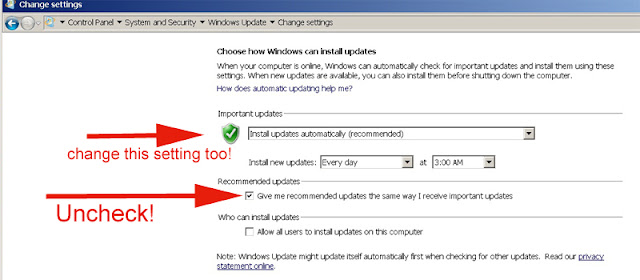
In Windows 8.1, a similar procedure is available or via the PC Settings "app" you can go to Settings > Update and recovery > Windows update and then make the changes. Again at the very least, uncheck the Recommended updates check box, and then be sure to apply those changes.
Once this is done you can also right click on any downloaded Windows 10 update and choose to hide it so that it is not accidentally installed.
There are other ways to accomplish the foregoing which include Computer configuration as well as the Windows registry. See:
How to manage Windows 10 notification and upgrade options KB3080351
Since the free update to Windows 10 for Win 7 and 8 users will end in July, this issue will to some degree then go away; however, we would still strongly recommend that end users take control of how and when their PC's are updated.
And, we greatly hope that Microsoft will provide that ability ultimately in Windows 10 as well, which is one of its biggest drawbacks. Automatic updates potentially create all sorts of system stability and usability issues that can only be properly managed and monitored by the end user. No operating system update should ever be forced.
The above is not meant to indicate that our accounting software does not work with Windows 10; in fact it does and with no known issues, see:
http://addsuminc.blogspot.com/2016/05/windows-10-and-advanced-accounting.html
This does not necessarily mean that no Windows related configuration issues might have to be dealt with. An operating system change is a major update, and the Windows 10 update in some cases may make temporarily undesirable changes on its own.
(*If you find that your PC has automatically updated to Windows 10, you may be able to revert to your prior version provided that you act quickly, i.e. within 30 days. Review your Settings > Update & Security > Recovery to see if you can go back to your earlier version.)
To control your Windows updates, in Windows 7, go to Start > Control Panel > System and Security > Windows Update. On the left side, click on Change Settings.

Then look for the Recommended updates check box (see below). At an absolute minimum, make sure the recommend update setting is unchecked. You will need to click on OK to make the change but before doing that, consider also changing the behavior of "important updates" to not simply install automatically. (Never update is our favorite option which renders the recommended update option moot, but at least give yourself control over when the important updates occur.)

In Windows 8.1, a similar procedure is available or via the PC Settings "app" you can go to Settings > Update and recovery > Windows update and then make the changes. Again at the very least, uncheck the Recommended updates check box, and then be sure to apply those changes.
Once this is done you can also right click on any downloaded Windows 10 update and choose to hide it so that it is not accidentally installed.
There are other ways to accomplish the foregoing which include Computer configuration as well as the Windows registry. See:
How to manage Windows 10 notification and upgrade options KB3080351
Since the free update to Windows 10 for Win 7 and 8 users will end in July, this issue will to some degree then go away; however, we would still strongly recommend that end users take control of how and when their PC's are updated.
And, we greatly hope that Microsoft will provide that ability ultimately in Windows 10 as well, which is one of its biggest drawbacks. Automatic updates potentially create all sorts of system stability and usability issues that can only be properly managed and monitored by the end user. No operating system update should ever be forced.
The above is not meant to indicate that our accounting software does not work with Windows 10; in fact it does and with no known issues, see:
http://addsuminc.blogspot.com/2016/05/windows-10-and-advanced-accounting.html
This does not necessarily mean that no Windows related configuration issues might have to be dealt with. An operating system change is a major update, and the Windows 10 update in some cases may make temporarily undesirable changes on its own.
Monday, May 9, 2016
Windows folder or file padlock icon removal
If the ownership of a folder is SYSTEM, starting with Windows 7, newly added files will be "locked" and the padlock or file lock icon will appear until those files are specifically shared with "Everyone" or some desired group of individual users or until the folder is shared differently in terms of its ownership on multi-user systems.
Until the file is shared or the ownership of the folder is changed, the newly added file will be accessible/readable by the PC on which it was installed but not by other users that connect to that PC.
Here is a helpful Microsoft technet article to help with on changing file or folder ownership:
https://technet.microsoft.com/en-us/library/cc753659(v=ws.11).aspx
(Take Ownership of a File or Folder, applies to Windows 7, WIndows Server 2008 R2)
As indicated via the MS article, you resolve by opening Windows Explorer, then locate the file or folder you want to take ownership of, right click on either the file or the folder, choose properties and then click on the security tab. Under Advanced click on the Owner tab (in Windows 10 click on the clickable Change label to the right of Owner).
 |
| Note the padlock (also commonly referred to as a file lock) icon |
Until the file is shared or the ownership of the folder is changed, the newly added file will be accessible/readable by the PC on which it was installed but not by other users that connect to that PC.
 |
| If SYSTEM is listed first (in the above example, it is listed second) , then newly added files may be be "locked" until they are specifically shared, or until a Users or Everyone group is added. Click on the Advanced button to view, in this case, the folder's owner. |
Here is a helpful Microsoft technet article to help with on changing file or folder ownership:
https://technet.microsoft.com/en-us/library/cc753659(v=ws.11).aspx
(Take Ownership of a File or Folder, applies to Windows 7, WIndows Server 2008 R2)
As indicated via the MS article, you resolve by opening Windows Explorer, then locate the file or folder you want to take ownership of, right click on either the file or the folder, choose properties and then click on the security tab. Under Advanced click on the Owner tab (in Windows 10 click on the clickable Change label to the right of Owner).
Saturday, May 7, 2016
Windows 10 and Advanced Accounting 7i software
While previously we advised caution in moving immediately to Windows 10, many users have now done so, and with no more problems or issues than traditionally have been the case when migrating to new computers with new operating systems.
Today alone we assisted two different end users, one of whom was replacing an XP Pro PC that had crashed with a PC running Windows 10 which we successfully connected to a Windows 2003 Server (that the user wanted to continue to use, for now), along with another user that had just replaced six of their XP Pro PC's with PC's running Windows 10 Pro, and with one of the Windows 10 Pro PC's acting as "the server" or gateway PC. We installed the accounting software on the Windows 10 "gateway" computer which went very smoothly, and then we converted all of the the user's Adv 5.1 data to the Adv 7i version, which was also completed successfully.
With any identifying information removed, here is a screen shot of the Advanced Accounting software running on one of the Windows 10 computers:

In general, we have been pleased to date with end user experiences using Windows 10 and Advanced Accounting 7i.
Whether your Windows 10 update installs completely smoothly or not is a different question, and is completely unrelated to Advanced Accounting. Windows 10 has been known to make changes on its own: it may remove existing program icons or even change folder permissions. So we would not recommend simply allowing this update to be installed on its own without supervision, and without also testing and especially with respect to any PC that is serving as the "server" or gateway PC where the software is actually installed, since the update may change user permissions and/or the folder's existing sharing characteristics. Losing installed print drivers has been another problem that some users have experienced which then creates problems in viewing/printing accounting software generated reports. So, it is not a good idea generally to let the Windows 10 update install itself when you may be unprepared to address other issues that may arise such as re-installing print drivers that may be required in order for your printers to work properly under Windows 10.
With respect to controlling updates on older PC's, see:
http://addsuminc.blogspot.com/2016/05/control-whether-your-pc-upgrades-to.html
Default printer and other settings you may need to adjust with respect to Windows:
Windows 10 default printer woes
See also:
Will Advanced Accounting 5.1 run under Windows 10?
Wednesday, April 6, 2016
DOS/4G error 2001 exception 0Dh
Users of legacy software that were designed to use the DOS/4G from Rational Systems, Inc. (later Tenberry Software) may experience a general protection fault response such as the following:

This might happen on a system where the legacy package was previously working, or may be triggered when moving the software to a different/new computer.
The DOS/4G extender was designed to help allow programs access memory above 640K in the pre-Windows era. Many different programs used the extender ranging from database applications and accounting systems to games. With the advent of Windows memory handling, its utility largely became moot and fortunately it is normally ignored when programs are run under more modern Windows 32-bit operating systems. Programs that were designed to use the extender however will require the presence of the DOS/4G executable (usually dos4g.exe or dos4gw.exe) or they will not load.
The issue relates to the Windows PATH that the DOS/4G extender was designed to handle. It has a limit of 250 characters (some sources indicate 255 or 260).
This issue is also unrelated to the specific operating system in use. Once the path environment variable exceeds the maximum, the DOS/4G extender error 2001 will occur. As programs are installed on, for example, an XP Pro PC, your path environment variable may start to become quite lengthy. Or on newer PC's with pre-installed programs, the PATH length may already be lengthy to start with. To see your current path, at a CMD line simply type:
PATH
If you want to determine its length, redirect the output to a text file, e.g.:
PATH > mypath.txt
Then retrieve the file, in this case mypath.txt, in NOTEPAD (uncheck Word wrap under Format and check on Status bar on view and you will then get a a line and column count in the status bar).
Another way to inspect your path would be under Advanced System Settings (how you get there depends on the operating system) and then Advanced and Environmental Variables. Changing/shortening your path here however may have adverse impacts when running other programs.
There are various potential solutions to the problem. The simplest perhaps is to simply edit the batch file (using a line editor such as NOTEPAD or if available EDIT) that starts the application (assuming one already exists) and simply add this line before the line that calls your application:
SET PATH=
(with nothing after the equal sign).
If your application does not use a batch file then create one with the SET PATH= statement followed by the name of your application (see your icon's properties). There are other solutions as well..
You may find that your application requires support from other folders and if so you may have to add a path or two to SET PATH= if that is the case:
SET PATH=C:\windows\system32;c:\someotherpath
Starting the application from the CMD prompt will initially help in troubleshooting errors.
More information:
Tenberry DOS/4G and DOS/4GW FAQ

This might happen on a system where the legacy package was previously working, or may be triggered when moving the software to a different/new computer.
The DOS/4G extender was designed to help allow programs access memory above 640K in the pre-Windows era. Many different programs used the extender ranging from database applications and accounting systems to games. With the advent of Windows memory handling, its utility largely became moot and fortunately it is normally ignored when programs are run under more modern Windows 32-bit operating systems. Programs that were designed to use the extender however will require the presence of the DOS/4G executable (usually dos4g.exe or dos4gw.exe) or they will not load.
The issue relates to the Windows PATH that the DOS/4G extender was designed to handle. It has a limit of 250 characters (some sources indicate 255 or 260).
This issue is also unrelated to the specific operating system in use. Once the path environment variable exceeds the maximum, the DOS/4G extender error 2001 will occur. As programs are installed on, for example, an XP Pro PC, your path environment variable may start to become quite lengthy. Or on newer PC's with pre-installed programs, the PATH length may already be lengthy to start with. To see your current path, at a CMD line simply type:
PATH
If you want to determine its length, redirect the output to a text file, e.g.:
PATH > mypath.txt
Then retrieve the file, in this case mypath.txt, in NOTEPAD (uncheck Word wrap under Format and check on Status bar on view and you will then get a a line and column count in the status bar).
Another way to inspect your path would be under Advanced System Settings (how you get there depends on the operating system) and then Advanced and Environmental Variables. Changing/shortening your path here however may have adverse impacts when running other programs.
There are various potential solutions to the problem. The simplest perhaps is to simply edit the batch file (using a line editor such as NOTEPAD or if available EDIT) that starts the application (assuming one already exists) and simply add this line before the line that calls your application:
SET PATH=
(with nothing after the equal sign).
If your application does not use a batch file then create one with the SET PATH= statement followed by the name of your application (see your icon's properties). There are other solutions as well..
You may find that your application requires support from other folders and if so you may have to add a path or two to SET PATH= if that is the case:
SET PATH=C:\windows\system32;c:\someotherpath
Starting the application from the CMD prompt will initially help in troubleshooting errors.
More information:
Tenberry DOS/4G and DOS/4GW FAQ
Wednesday, March 23, 2016
Locky ransomware on the loose
A user of a software system published by a third party for which we are the developer experienced an error message today indicating that a Codebase file used by the system was corrupt (in this case, the error was a -70 status on FILELOC.DBF, a file that our runtime executable opens on startup).
It is normally very unusual for this file to become corrupted through normal operation; it is even more unusual in this particular vertical software system since it is opened but never updated (i.e. written to).
Without seeing the system, initially we could only assume that the file probably had a bad index and needed to be rebuilt. After going through those steps with our customer contact and discussing the need to first make a backup of the file before attempting the rebuild and also ensuring that users had exited the software, we then received a phone call indicating that while viewing the folder containing the system files including the location of the FILELOC.DBF file, he was seeing some very strange long file names with ".locky" file extensions. We were then able to access the system, and this is what we saw:
 |
| Locky virus infestation |
Realizing that the corruption of the file was in fact being caused by ransomware encryption, we terminated the remote access and advised the user to immediately contact their IT support staff.
The LOCKY ransomware virus can apparently spread via network shares without requiring mapped network drives. So relying on non-mapped drives will not be an effective strategy to deter its spread. In this case, an e-mail was opened from a laptop client and the virus quickly (probably within minutes) spread to the file server via a standard UNC share (the folder above is a server folder view; the e-mail infection was not however originated from the server).
We note this March 16, 2016 report from a hospital in Kentucky similarly infected:
Hospital Declares ‘Internal State of Emergency’ After Ransomware Infection
Some helpful background on this virus is available here:
New Crypto-Ransomware Locky Uses Malicious Word Macros (Trend Micro 2/19/16)
“Locky” ransomware – what you need to know (Sophos 2/17/16)
Locky malware, lucky to avoid it (Microsoft Malware Protection Center 2/24/16 blog)
Remove Locky Ransomware and Restore .locky Encrypted Files (SensorsTechForum 2/16/16)
Blocking the Locky Ransomware Virus - Update and Tips (GreenviewData 2/25/16)
As the Microsoft blog notes, the virus is being spread in a familiar way via e-mail spam (the Trend Micro report indicates that it is disguised as an innocuous e-mail with changing headers referring to the attachment of a fake invoice contained in a Word document). The virus reportedly can be activated by simply opening the e-mail (i.e. can be contained in the body of an e-mail) and not just by opening the attachment, although, that seems somewhat unlikely since the script that causes the infection is via a Word macro.
As with CryptoLocker ransomware that we wrote about on October 15, 2014, end user education is again paramount to avoid being infected. There are indications that the virus can be triggered simply by opening up an e-mail (probably via an embedded link in an HTML-based e-mail). So we would recommend not even opening an e-mail from either a suspicious or non-trusted source. To say another way, you may be able to become infected not only by opening a file attachment, but also even by simply opening the e-mail itself. Mail programs that provide an initial preview without opening the incoming mail are still likely safe.
Users should be instructed never to affirmatively respond to a query asking them to enable scripting of any kind. Traditional anti-virus software approaches are not enough; just because your anti-virus definitions are current does not mean that you are protected.
The need to keep frequent backups also cannot be emphasized enough should an infection occur. In this situation, the user had a backup that was only two hours old and therefore was able to almost completely recover (there were still seven corrupted files in the software system that we support that we were able to simply replace; eventually the virus would have encrypted everything, but for whatever reason decided to encrypt files with a DBF extension first, probably recognizing them as a well-known data file type). The Codebase error returned on all seven files was a -200 which translates to "File is not a data file."
In addition you can take some steps as outlined in the links above that will help to avoid malicious scripts from being run.
Sample screen shots of some of the screen settings to consider for Adobe Reader, Fox Reader, and OpenOffice are contained below. For Microsofit Word/Excel macro security settings, see the Microsoft Malware Protection Center blog link above.
 |
| Disabling JavaScript in Adobe Reader Acccess via Edit --> Preferences from the reader menu |
More re: Adobe Reader:
Under "Trust Manager" you may also want to uncheck "Allow opening of non-PDF file attachments with external applications."
And, under "Security (Enhanced)" you may want to uncheck "Automatically trust sites from my Win OS security zones."
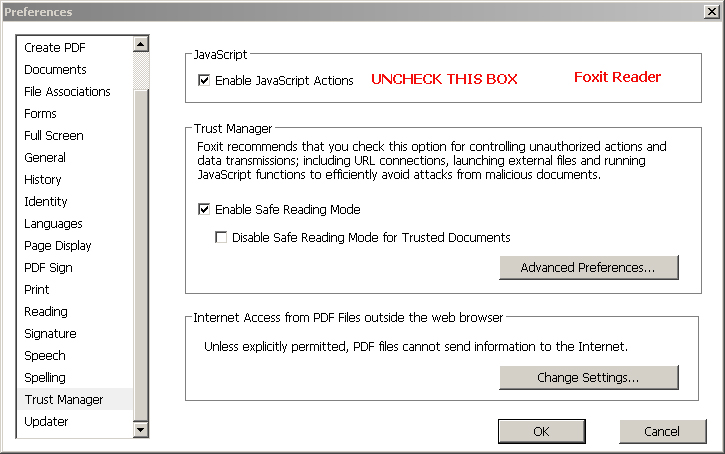 |
| Disabling JavaScript in Foxit Reader Access via File --> Preferences Verify that enable safe reading mode is checked |
Under "General" you may also want to uncheck "Create links from URLs."
 |
| OpenOffice Step #1 From Tools --> Options while in any of the program options |
 |
| OpenOffice Step #2 Raise the security level to very high |
Tuesday, February 23, 2016
Extend the life of old applications with vDos
Extend the life of old applications with vDos: using vDos to run 16-bit programs
in 64-bit environments

Other than upgrading to a newer version of the software which is available, there are a few other solutions to this problem, most not terribly desirable. One is to replace the existing PC with a 32-bit version of the same operating system (particularly if it is running Windows 7, 8 or 10). That is an increasingly impractical option. Another is to install a virtual 32-bit environment or emulator. Typically these are fraught with a variety of technical hurdles and are still somewhat awkward to access.
Another solution is vDos.
 |
| Advanced Accounting 5.1 (DOS mode) running under Win 7 Professional 64-bit (FRAME set to OFF - recommend to be ON however) |
Background:
While most of our users either have migrated (or will soon will be) to newer Advanced Accounting versions, it can still be desirable to be able to run old programs even if they will not be getting used on a regular basis. In addition, if an older PC fails when the older version was still being routinely run, and the old software is then of necessity migrated to a 64-bit system, the old software may still needs to initially be run in order for the conversion of data from 5.1 to 7i (and soon 8) to take place, plus it may be needed to be used until that can occur. Programmers may also have an occasional need to look at older programs in the TAS 5.1 (or prior) application development system and be able to make program changes and compile older programs from a 64-bit PC.
vDos potentially provides a solution for all of the scenarios above. It could even be used for users who would rather fight than switch, the only primary potential problem then would relate to printing. vDos however provides ample support for printing and in fact provides legacy versions with a Windows dialog box that older versions lacked.* The printing options in fact appear to be very powerful including being able to print to a PDF, but would likely require changes to individual programs in order for the output to be properly aligned and formatted correctly in general.
(*Other than the tp5win.exe mode of version 5.1. Tp5win.exe, while 16-bit, requires a Windows installation and therefore cannot be run under vDos.)
vDos was originally provided on SourceForge and made available as freeware until recently. Older/freeware versions as well as community support remains there:
https://sourceforge.net/projects/vdos/
General information from the publisher about the product is here:
https://www.vdos.info/index.html
The April 2015 version (the October 2015 version has a built-in expiration date) remains available for free. Starting November 1, 2015, the latest version which should be registered but can be downloaded installed without advance payment (and which is no longer 100% open source, an irrelevant fact for most users).
https://www.vdos.info/download.html
Installing and using with older versions of Advanced Accounting:
Initial setup: Installing vDos initially is simple. The default install folder is C:\vDos. It normally should be installed to a local drive even if the accounting (or other legacy) software is installed on a networked drive, at least for preliminary setup and testing.
Folder names and any called file names should be 8.3 compliant. The location of the existing legacy software should already be in a compliant folder name. If located across a network, the user will need the normal read/write/delete rights to the folder.
The vDos software uses the C++ dynamic library link file MSVC100.DLL. If you receive a message indicating that DLL is missing, you will need to download and install the Microsoft Visual C++ 2010 Redistributable Package currently available here:
http://www.microsoft.com/en-us/download/details.aspx?id=5555
At this point, you should be able to run the vDos software which by default calls an old DataPerfect application as a test. Assuming that runs successfully (press F7 to exit out of that software and type the word EXIT and then press ENTER to exit the session), proceed with next section.
Configuring to run Advanced Accounting: The vDos.exe (executable) creates its own C:\ environment or session, and relies on two files that are initially installed in the same folder as the executable, CONFIG.TXT and AUTOEXEC.TXT. These correspond to the days when CONFIG.SYS and AUTOEXEC.BAT were in the C:\ drive of MS-DOS systems as well as early MS-Windows systems (in later versions of Windows, they were placed in C:\WINDOWS\SYSTEM32 and renamed CONFIG.NT and AUTOEXEC.NT). The shortcut to vDos.exe will automatically process whatever is in the CONFIG.TXT file and call the program specified in AUTOEXEC.TXT as if it was a batch file. While initially that is the most simplistic installation approach, in a multi-user environment or if you will be using vDos.exe to support more than one legacy application from the same desktop, a different and better approach would be to copy the CONFIG.TXT and the AUTOEXEC.TXT to the legacy application's folder, and then in the icon's properties, change the "Start in" folder to match that location.
Nothing needs to be added or changed to CONFIG.TXT (except see the recommended change below). CONFIG.SYS and CONFIG.NT in the older days required a FILES=150 (typically defaulted by Microsoft as FILES=40). vDos however does not require any FILES= statement because it is already equipped to handle a high enough number of global file handles. If you intend to print out of the legacy application, you will need to review the CONFIG.TXT to tell it how to handle printer redirection for LPT1, LPT2 and LPT3. There are some other optional settings that can be made. A setting in CONFIG.TXT that we would highly recommend enabling is:
FRAME = ON
Just remove the REM prior to that line in CONFIG.TXT. Not only does this provide a standard border around the application window and therefore provides for standard window navigation, it also makes the screen behave in a more expected fashion should you attempt to move the title bar/window around with your mouse. Without enabling FRAME=ON, the window wants to move down on the screen to the point where it becomes unusable (at least when accessed remotely).
If you are configuring vDos to run Adv 5.0 or 5.1 (but not earlier versions) or TAS 5.0 or 5.1, it is essential that you turn off the dosg4 handling. These versions of Advanced Accounting and TAS include the setting file:
tpc50.ini
which resides in the same folder where the version 5.0 or 5.1 software is located (i.e. wherever tpc50.exe and dos4g.exe are located).
Use notepad or some other line editor to change the default from:
[dos4g-vm]
On=TRUE
etc.
to
[dos4g-vm]
On=FALSE
and save. When run under Windows on 32-bit PC's, Windows ignores the DOS 4G extended memory manager and uses its own memory handling, but if the dosg4g-vm section "On" key is not turned off by setting it to false as above, vDos will not be able to load the program and will return the error:
Page fault directory or table entry not present
Next edit the AUTOEXEC.TXT file to replace the reference to the demo/test application with calls to run Advanced Accounting. vDos has a USE command that allows you to do something somewhat similar to a NET USE which is handy even if the application is stored on the local drive and not across a network. Keep in mind that you have to move to the application relative to the C:\ session environment you will be in once vDos.exe is called. UNC paths are not normally used with legacy applications, but the vDos USE option allows you to use them in its supported USE statement. So where servername is the Windows server or PC name where the program is installed and adv51 is the name of folder that the program is physically installed under, you might assign drive Z: (which does not have to match physical drive mappings, but is preferable) as follows in the AUTOEXEC.TXT file.
use z: \\servername\adv51
Then you would "move" to the z: drive setup after making the USE above by adding this to the next line, just like you would in a batch file:
z:
If needed, you could include "change directory" commands to move to a folder if the USE statement referred to a folder above where the software was installed, e.g.
use z: \\servername\shared
cd adv51
Note: while not required, it is best to use the same drive letter as any existing drive map to the same folder, or to at least not use conflicting drive letters to avoid not only confusing Windows but also yourself and anyone else who is responsible for maintaining the system at a later date. Put comments in the TXT file to explain what was done, and why.
Next use the CALL statement to either call the normal Advanced Accounting batch file or the related executable directly as outlined below.
Remove or place a REM in front of the test program:
rem CALL DPTEST\STARTDP
and replace with:
call adv.bat
Before using adv.bat, review it in a text editor such as notepad to determine whether it has been modified to change directories or call something that should not be called in this simulated environment. Instead of adv.bat, you could instead:
call tpc50.exe bkmenu
You could also establish SET TAS50= or PATH= values as needed. To avoid having to type EXIT to return to the desktop, simply remove the rem before the word EXIT at the end of the AUTOEXEC.TXT file.
There is one additional property that we have found needs to be made and one that is commonly made with legacy programs: right click on the vDos desktop icon, choose Properties, click on Advanced, click on the "Run as administrator" option to check it if not already checked, then click on the OK button and then OK again.
If you receive a:
TAS50.OVL could not be found in your default path
it will relate to the "run as administrator" icon property above which will likely be needed even if you are logged in as administrator to the local PC.
 |
| Click on Advanced to enable Run as administrator option The "Start in" can/should be changed to match the location of the CONFIG.TXT and AUTOEXEC.TXT files that tell vDos what application to run. |
vDos is an excellent product that we would recommend especially to bridge the gap in situations involving PC migration as well as for archival reference. Unlike in some simulated environments, all screens and screen characters appear normally and all of the important keystroke combinations that Advanced Accounting uses (function keys, ESC, Home, End, Page Up, Page Down, booster key combinations such Alt-1, Alt-F1, Ctrl-Page Down, etc.) all appear to be properly supported. vDos documentation claims to be capable of full multi-user access and so could be used to support live production environments (which we have not tested). Running from across a network, it may be a little more sluggish than running from a 32-bit PC directly, but not unacceptably slow. vDos supports some interesting printing enhancements although it may be possible to fully reap the benefits of those without some reprogramming of existing Advanced Accounting 5.1 (or prior) report layouts and related code. Using this as the sole solution for moving forward into the 64-bit world is probably not realistic in the long term for most users: upgrading to the newer versions of the accounting software would normally be the better long term option for Advanced Accounting users. On balance, however, vDos is highly configurable and is seemingly a very valuable tool that could have many uses.
 |
| Advanced Accounting 5.1 (DOS mode) running locally on Windows Server 2012 (FRAME set to OFF in this example - recommend to be ON however) |
Note: our preliminary succesful testing on two different systems (Win Pro 7 64-bit and Server 2012 64-bit) was solely with the Btrieve 5.10a TSR as distributed and provided by the original publisher of Advanced Accounting 5.1, TAS Professional 5.1, and predecessor products. An attempt was made to use a Pervasive 11 workgroup engine on a third system, but that does not appear to be possible. While modern Pervasive engines do provide "DOS Box" support, that support appears to be unavailable when using vDos, which is instead attempting to run the application in a largely different environment; it is largely not integrated with the Windows operating system and does not therefore support DEVICE= statements in its CONFIG.TXT file, etc.
Subscribe to:
Posts (Atom)