Addsum web site and general info

Postings here will focus mainly on Advanced Accounting software updates, tips, and related topics. They will also include general comments relating to troubleshooting PC/Windows/network problems and may also include reference to our other software products and projects including any of our various utilities, or to the TAS Premier programming language. We considered setting up separate blogs for different topics so that users/others could subscribe to topics mostly aligned with their interests, but decided that it would be better to keep things simple since some topics cross over into others. We would nonetheless welcome your feedback/input in this regard. Our web site URL is www.addsuminc.com. Call us at 800-648-6258 or 801-277-9240. We also maintain www.advancedaccounting.us so that older Business Tools users in particular have a greater chance to find us. White list noreply@follow.it to ensure you receive notifications once you subscribe.

Tuesday, December 15, 2015

Adapters and binders and provider order priority may cause chaos

Recently two of our accounting software users have reported problems that correspond to whether their PC's wireless Internet connectivity is enabled or not.   In one case, a Windows 7 Pro PC connected to Advanced Accounting across a network "stops working" when connected wirelessly for Internet access (normally the PC is without Internet access).  In another case (operating system unknown, probably Windows 7) , the software installed on the local drive and not networked operates as expected when the PC is wirelessly connected to the Internet, but the user experiences "run program not found" types of error messages when that connectivity is disabled.

Locally installed programs (on-premises software in today's jargon) usually do not care whether Internet connectivity is available or not, much less whether it is wired or wireless and that is certainly the case with Advanced Accounting.

Network adapter and binders priority and/or provider order settings that have been changed by other program installations may be responsible for these problems.

Microsoft has a tendency to to put wireless connections at a priority with newer PC operating systems.   Also certain programs may install themselves as having priority potentially creating  slowness.

We note for example that the Teamviewer VPN likes to insert itself as first priority under Adapters and Settings.  This was a result of its installation and not because we placed it there:
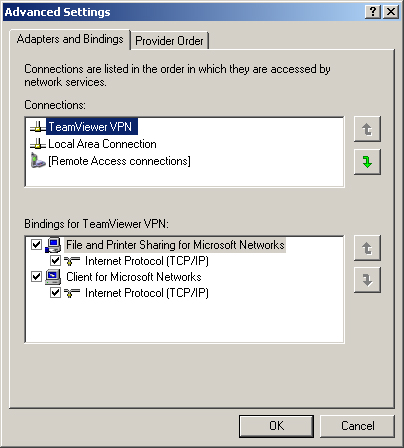


TeamViewer VPN made itself first priority.  Even if we used it very often (we don't),
it would still be advisable to move Local Area Connection by highlighting it and then 

using the arrows at right to instead make it the first priority.

If you have wireless connections set before your local wired network, move your wired network above them.  Wired networks are always faster (and safer) and so if you have one, make it the priority.


Even Microsoft Terminal Services puts itself as the first network provider:
Move Microsoft Windows Network to the top by highlighting it and 
then using the arrow buttons at right.

Whether these changed priority settings would lead to local software not loading at all would be unexpected, however, it is known that bad or corrupt settings can lead to drive mapping failures including errors such as "Network path cannot be found."

Some examples:

http://www.tpateman.co.uk/reboot/unable-to-access-unc-paths-and-map-drives/

http://weblog.west-wind.com/posts/2013/Apr/04/UNC-Drive-Mapping-Failures-Network-name-cannot-be-found


To review and potentially change the order of Adapters and Bindings as well as your Provider Order, see below.


XP Pro:


On the desktop, right-click My Network Places, and then click Properties.

On the Advanced menu, click Advanced Settings.

On the Provider Order tab, in the Network Providers list, click Web Client Network.

Press DOWN ARROW so that Web Client Network is the last provider in the list, and then 
click OK.

Alternatively, you can change the network provider order in the registry. The registry 
entry is:

HKEY_LOCAL_MACHINE\SYSTEM\CurrentControlSet\Control\NetworkProvider\Order\ProviderOrder
The default value of this entry is RDPNP,LanmanWorkstation,WebClient.  

Above based on:
https://support.microsoft.com/en-us/kb/832161


Windows 7 including Win 2008 and 2008/R2:


See:

https://support.microsoft.com/en-us/kb/2526067

http://windows.microsoft.com/en-us/windows/change-network-protocol-bindings-order#1TC=windows-7

https://technet.microsoft.com/en-us/library/cc732472(v=ws.10).aspx


Windows 8/8.1:


www.laptopmag.com/articles/change-connection-priority-windows


Windows 10:

http://blogs.technet.com/b/networking/archive/2015/08/14/adjusting-the-network-protocol-bindings-in-windows-10.aspx


Make your local workstation and wired connections the first priority via these options, i.e. before  any wireless or other connections.  Occasionally re-check these settings.  If nothing else, your local network connectivity should be faster.

Thursday, November 12, 2015

W-2 reporting of employer-sponsored health coverage

Using Advanced Accounting's editable W-2 feature pertaining to boxes 10, 12, 13 or 14 first introduced in version 6 in 2007, the costs related to employer-sponsored health coverage can be easily input so that W-2 forms will contain this information as may be required.

While the requirement for this information went into effect in 2012, the IRS has provided transition relief for many businesses until "final guidance" is provided that still appears to be pending.  The current recommended course of action can be found hereIRS 2015 W2/W3 general instructions on the one hand indicate that reporting of these amounts is required, but then makes a somewhat circular reference to the Box 12 instructions which then refers one back to the recommended reporting guidelines and the reference to future guidance.

For those companies who either want to, or are required to, report the amounts, they are reported using code DD in Box 12 (a, b, c, or d). The amounts reported are not taxable to the recipient and are simply an information requirement (logically then Box 14 would have represented a more appropriate place for them, but that is not where they are reported). Unlike deferred compensation amounts included in Box 12 and carried over to box 12a on the W-3 form, code DD amounts are not reported on the W-3 transmittal form.

Previously anything entered in one of the four slots in Box 12 via Advanced Accounting's W-2 option were summed and included in the W-3 Box 12a total.  Starting in 2015, we have added programming logic to exclude any DD code amounts from being included in that total.   Other than this change (and adding some additional instructional language on the main screen of Advanced Accounting's PR-G option used to print W-2s as well as when presented with the "edit" question along with some screen changes to reference code DD on the pertinent input screen), the program remains the same.    

While we still support all versions of Advanced Accounting ever released, only the latest version (7i with latest updates, and soon version 8) will contain the changes described above.

So what are the steps for reporting this information?

(1) Give yourself enough time to tackle processing your W-2 forms even though it may not be particularly time consuming.  In this regard, take advantage of the "do it later" feature (i.e. under PR-G and then the option:   Clear employees/process W-2s later) which was first introduced in version 7i in early 2012;

(2)  Before proceeding to process your W-2 forms, accumulate information you may either be required to report, or that you may want to report, in the editable boxes.    Read through the latest W-2/W-3 instructions from the IRS and/or the instructions on the back of the W-2 forms paying particular attention to the editable boxes.  With respect to the cost of employer-sponsored health coverage, IRS instructions indicate that it should include both employer and employee paid amounts;

(3)  Nothing related to code DD is initially selected when tying employee deductions to IRS boxes, because the amount you might report under code DD will not likely correspond to those deductions.  Simply process as normal until you reach this question:


Answer:  Yes.

(4)  Next you will see a screen for each employee like this:


The highlighted Box 12 section is where you input the code DD and then to the right of that code, the cost amount for that employee.  It does not matter in which of the a,b,c, or d slots that you input the code and amount.  Further, you can input it in different places for different employees if you need to. (For simplicity however we would recommend using Box 12d for all DD amounts; or chose some other box that is the same for all; but again, this is not required.)  The program will include all amounts entered in Boxes 12 a,b,c, and d into the W-2 transmittal's Box 12a except it will now exclude any DD coded amounts.

(5) Simply continue to the next employee and process to completion as normal.


More information:
IRS Employer-Provided Health Coverage Informational Reporting Requirements: Questions and Answers

Sunday, November 1, 2015

XLS files: converting text to numbers


When retrieving an XLS file generated directly from the print to file option included in all Advanced Accounting versions from 6 through 7i (see printing to a file in Advanced Accounting) as well as upcoming release 8, numeric data may be initially formatted as "text" rather than as numbers.  In order to use the data in calculations, this text data can be easily converted from text to numbers via a few steps depending on the spreadsheet program that is used.  The discussion that follows outlines options available in OpenOffice Calc and Microsoft Excel to accomplish this task.

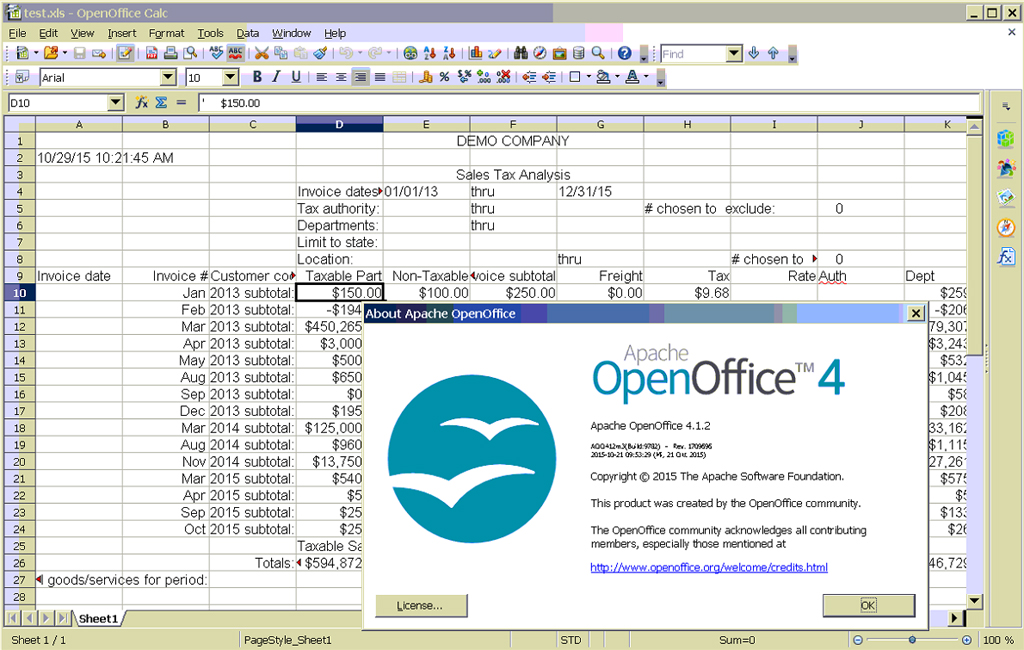
First, here's a preview of a sample report generated out of upcoming Advanced Accounting 8's enhanced sales tax analysis report grouping sales by month:


The discussion below involves retrieving the XLS file generated from this report and converting some of the columns to numbers.


OpenOffice Calc:

In OpenOffice, a leading apostrophe denotes text formatting.  


Rather then edit the cells individually, after retrieving the XLS file (click on File then Open and navigate to where the file was saved), first select and format all cells to numeric (not currency) with two decimal place precision.


Note:  a convenient way to select cells is to simply click on the first cell and then hold the SHIFT key and use down and ultimately right arrows.   Then click on Format then Cells to get the option above.

Without unselecting the cells, do a Find and Replace (click on Edit and then Find and Replace, or CTRL-F) .

Search for:

^. 

(i.e. input the caret or exponent symbol produced via Shift-6 followed by a period)


Replace with:

&

(i.e. an ampersand character, Shift-7)

Click on More options if the option list is not already expanded and make sure that "Regular expressions" is checked.

Click on Replace All, then Close.


All of the selected cells are now numeric.

The above procedure works in OpenOffice 2, 3 as well as the recently released 4.

Microsoft Excel:

There are many different versions of Excel, each of which may offer different approaches to accomplish this task.   A general reference document can be found here: How to convert text to numbers in Excel.

The "text to column" approach is one method (Method 7 in the link above), although it only works in selecting one column at a time and is not as convenient as in the OpenOffice Calc example.  Here is an example using Excel 2010 and this method.

Select one column of text that contains numbers.

Under the Data menu or tab, choose Text to Columns.

Choose Delimited, click on Next and choose Tab and again click on Next.


Choose General for the column data format.   Via the Advanced button, the decimal and separator options can be made, and then click Finish.   


Repeat for each column.


Wednesday, October 14, 2015

Panda antivirus: not our favorite


The truth is that we really do not have a favorite brand of antivirus protection software. Like death and taxes, antivirus software is not optional in today's world.   Often the antivirus and related malware detection applications however behave at a level equivalent to some viruses.  And they typically steal processing power along with their incessant updates making computer use much less enjoyable and efficient.

Users are further placed into the unsavory position of having to choose sometimes between antivirus packages that have excellent detection but high resource utilization versus antivirus software that has lower detection accuracy but also lower resource usage demands.  

Often Norton/Symantec Antivirus and McAfee brands have been the causes of PC slowness. Over the years, however, we have heard of more rogue problems with Panda Antivirus than any other.  And today was no exception.

Yesterday we updated an end user's main executable with a newer version simply as a part of an update and because it might have helped with an issue they were having.   Everything was working fine until an automatic update occurred on that system this morning. The update at least in part involved Microsoft updates (this was on a Windows 7 Ultimate operating system). The 19 Microsoft updates that were installed rendered the PC unusable for a time, a story that is all to common (and we recommend managing these on a non-automatic basis for exactly this reason). The end user though was also using Panda Antivirus 2015, and we suspect that a Panda update also occurred. After these updates and after having used the executable associated with the software earlier today that we had updated yesterday, the executable simply vanished along with the desktop icon associated with it.

And it was Panda Antivirus 2015 that removed it.  When adding it back, naturally Panda still refused to allow access. Initial responses however were Windows permission and networking errors and nothing from Panda until finally:


What was suspicious about the file?  Because it was downloaded via a web service (in this case via file transfer protocol)?  Yet that's where pretty much everything comes from these days.   No other details whatsoever?  No indication of the publisher name or the digital signature date if that information is present (which it was) so that the user can make an informed decision?  How would the user otherwise easily, quickly and without having a somewhat high level of expertise know what to do?  How high of a burden is this to place on a end user without providing as much information as possible in a case involving a false positive as here?   Won't this then encourage the user without this information to "neutralize" (a euphemism for delete, kill, remove, etc.) the threat?   The "threat" once averted then cripples the end user system.

So at this point, the file can be "excluded" and the software was then again operational, but that alone is not enough.  Exclusions need to be added as we did here after this problem arose:


(Any antivirus program you use should allow for adding exclusions or exceptions.  If it doesn't, find another antivirus program.)

Prior to adding the exclusions above, Panda's settings reflected the fact that the files had been quarantined but then excluded.


And this is not the first time we have seen this happen.   A different system in 2013 that was using Panda and a software package that also uses the same executable suddenly experienced the same thing and that was on system that had not changed for some period of time. Yet, these are are simply completely valid, digitally signed executables with no compression and which have been widely used on many other systems and not falsely detected as being suspicious by other antivirus software.

Is it possible that users when presented with the "suspicious file" option are choosing "Neutralize" rather than "Exclude" since it is the first option and since it sounds less benign, and so the removal is actually being confirmed by the user?  Yes, that is possible, and we can't be certain that did not happen in these two cases, but there have been other reports of files deleted by Panda that did not appear to involve any user interaction.

In much older systems (and going back into the late 90's) we had several reports from users using Panda where false positives would occur on end user data files (and so not executable files at all) that could not possibly be infected with a virus, and yet in at least two cases Panda actually deleted the end user's data (files that just happened to not be open that Panda decided to quarantine and delete them) during daily operation of the software.  

We've never experienced these problems with any other commercial antivirus software programs.

This points out how critical it is to exclude critical software installations such as accounting software or heavily used production systems from real-time antivirus or malware scans.   False positives can and do happen with all antivirus software.   And if you use Panda, you are at even greater risk if you do not do this.

And also be very wary when updates occur.  While Panda is not alone in having update problems, earlier this year a significant problem arose with a Panda update, see this story published on March 11, 2015 in the iDigitalTimes:  Panda AntiVirus Update Problems Bricked Your Computer? Here's How To Fix Wiped Files And Restore Your PC Stability.

Is the cure worse than the disease?  Maybe not, but often it seems that way.


Sunday, October 4, 2015

TAS Premier 7i release 10

Tomorrow we will will officially publish our tenth release of TAS Premier 7i.   Originally released on September 21, 2005, we have published ten releases in the last ten years. 

Release 10 addresses many different areas of the development system from data dictionary maintenance to internal runtime handling in the event of missing program files (whether physically missing or temporarily unavailable to network connection or pathing issues).  


Of note however are the many enhancements relating to reporting and printing.   A vexing issue that has only occasionally been reported (not just in TAS Premier 7i but also in the TAS Professional 6.x series before it) is a report image  (whether actually attached or loaded "on the fly") which while appearing perfectly in order on the preview screen, randomly prints out to the printer as either blank (i.e. leaves white space) or is outlined in black.  One user thought the problem started with Windows 10 but in fact it is unrelated to any particular operating system.   Some users have thought it related to a printer driver issue. Others suspected that the size or type of the graphic file was the issue.  

In fact, it was none of these.   And it also had nothing to do with anything in the TAS Premier 4GL development system itself but rather with an underlying third party component that had in turn based its image handling code on the 3GL language used to create modern versions of TAS.

The use of components is a necessary part of Windows programming, but this also shows how a problem with one procedure in one underlying component has a rippling impact on everything that is then built on top of it.  Finding an appropriate patch was difficult, but was something we accomplished several months ago.

For the first time, report emulation text files are supported in release 10 and appears as the first option in the print to file drop down box:


(for more about printing to a file, see Printing to a file in Advanced Accounting)

A "Text" option was originally provided by the original publisher of the TAS language and IDE starting with version 6, but its purpose was actually to export specific fields/columns of information in a report, and requires a special setup that is essentially report specific.   Its selection would therefore result in a blank page.  The RET files instead produce the text (no graphics) equivalent of any existing report including spacing (but no printer specific codes).  This is no doubt what was originally intended and provides users with a quick way to output text from a report somewhat similar to what was available in legacy (5.1 and prior) versions most which did not support graphic reports (with the exception of one private label version).   Note though that if a report layout relies on auto-sized fields and/or its column spacing is cramped or relies on a variety of differently sized proportional fonts, you should expect that some text may overlap or be truncated, and the resolution for that, if critical, is with the design of the report layout itself, i.e. its RTM.

Also included is support for the first time of report archive files (RAF).  We decided against including these in the drop down box (but might add that in the future) associated with "Print to file" since end users would typically not know what they were for, plus they would no have a way to preview/print them without an appropriate viewer and there could be issues with security/confidentiality (although that is certainly true with other types as well).   Instead we decided to put this powerful capability into the hands of the developer to create them when needed and we have also provided a new function that allows them to be previewed/printed exactly like any report.   Report archive files have many potential uses for storing a report exactly the way it was initially generated, and also for generating reports after hours and then previewing/printing them later. Developers will be in the best position to implement their use.

For the short explanation of other updates including in release 10, see TAS Premier 7i updates.  For a detailed explanation, see the help (CHM) file that is included with the update or full download.  A PDF equivalent is also separately available and now exceeds 720 pages.

Occasionally there has been more than one TAS Premier release in a single year as there was in 2012 and there was one two year+ period between 2009 and 2011 without an official release.  Updates however are made frequently and our goal remains to provide at least one official TAS Premier release per year.

The TAS Premier 7i development system is still completely free as it has been for the last ten years.  End user deployment does require an inexpensive runtime license.  As future more advanced capabilities are provided, there may be charges for use of those features.


Wednesday, September 30, 2015

A salute to Gene Patterson

Yesterday we were saddened to learn that the president of a longtime Advanced Accounting user had recently died.

At age 76, Gene Patterson had still been very much active in the business operations of PatCo, Inc.  an industrial and contractors supplier specializing in fire safety equipment located in Murfreesboro, Tennessee, and had been its president for the past 28 years.   Gene's son Roger, with some 27 years of experience and formerly the vice president of PatCo, will be continuing to lead the company.

Gene also served in the National Guard.

Our first contact with Gene was in July of 1995.  His company at that time was using Advanced Accounting 5.0 published by Business Tools, Inc.   We were engaged to make a number of custom program modifications which were completed that month. Only a few months later, we held our first ever Advanced Accounting seminar (in St. Louis) and had the privilege of meeting Gene and one of his employees.  Gene would later also attend a seminar that we held in Salt Lake City in the fall of 2000.

We continued to provide technical support and custom program services as needed including the software and programming assistance to convert PatCo's system from Advanced Accounting 5.0 to 5.1 by the end of 1998, and continued a relationship through to the present.   PatCo continues to use the 5.1 version in 2015.

As is often the case with longtime users, often we would not hear from PatCo for long periods of time.  From 2003 to 2008 we would sometimes not hear from them for more than once or twice per year, or sometimes not for an entire year or more.   There was a three year period from late 2008 to late 2011 when we had no contact at all.  Prior to the call the other day when we learned of Gene's passing,  we had not heard from anyone there since July of 2014.

Gene and his staff were always a pleasure to deal with.   He typified the hard working, long-lived entrepreneurial spirit of business owners that use Advanced Accounting.

We often don't get the opportunity to say thank you to customers like Gene and to companies like PatCo that we have had the opportunity to work with, in this case over a twenty-year period.  Thank you.

And we salute Gene for the hard work he put into his business that unquestionably had a positive impact on the local community and the lives of others.


Tuesday, August 11, 2015

Windows 10: Wait

A number of our users have already tested running our software under Windows 10, and the results are all encouraging and we don't anticipate any problems.

Nonetheless, especially if you depend on your PC in running a business, it is too early to update.

If you will be eligible for the free Windows 10 upgrade, then at some point before it is too late (and if Microsoft gets the message that forced automatic updates are not acceptable) you will no doubt want to upgrade.   

But as with all new operating systems (and there is no exception to this rule for business users), you should wait for the first service pack to be released before simply forging ahead.

Minor updates/releases can be problematic enough. Seemingly simple updates can cause significant problems.  We've written about recent examples including Win 8 updates that do not fully complete (this app cannot be run on your PC in May of 2015) and updates that caused font degradation (Microsoft automatic security update 3013455 released in February of 2015 ).

Apple iOS updates over the past several years have had more than their share of problems showing that Apple users should justifiably have the same fear of even minor updates as Microsoft users have been conditioned to have.  In fact iOS 8.4 has for some of us has been a disastrous update (we have an occasionally used iPad that the iOS 8.4 update has rendered useless, even after a full reset).

Yet the fear of not getting the latest, untested security update has been pounded into the minds of computer users.

Jumping to Windows 10 however is an even bigger leap of "forced update" faith.  Users need to be able to control when/whether they want to receive those updates.   And, regardless of that issue, unless you want to be a part of the Windows 10 testing community and because there are always unknown problems that follow new releases, wait for the first service pack at the very least.

Some recent resources on this topic:

Windows 10 review: Hold off if you use Windows 7 (InfoWorld, July 29, 2015)
Windows 10 Forced Updates Causing Endless Crash Loops (Forbes, Aug. 8, 2015)
Windows 10 Problems: Wait to Upgrade for Now (GottaBe Mobile, Aug. 10, 2015)


An additional side note of interest relates to Microsoft's currently planned support cycles for Windows 7 and Windows 8:  Windows lifecyle fact sheet.

While Windows 7 "mainstream" support ended in January of 2015, "extended" support (security updates) are still expected to be provided until January of 2020.

And if you do decide to put Windows 10 on an older computer, keep your expectations low.  The upgrade may very well install and work up to a point (and that is perhaps the surprise), but your PC may also become marginally useful.

Can your old PC run Windows 10? The answer will surprise you. Here's how Windows 10 feels on very old hardware. (PCWorld, July 30, 2015)

Win 10 will not be a cure for an older, poor performing PC.